
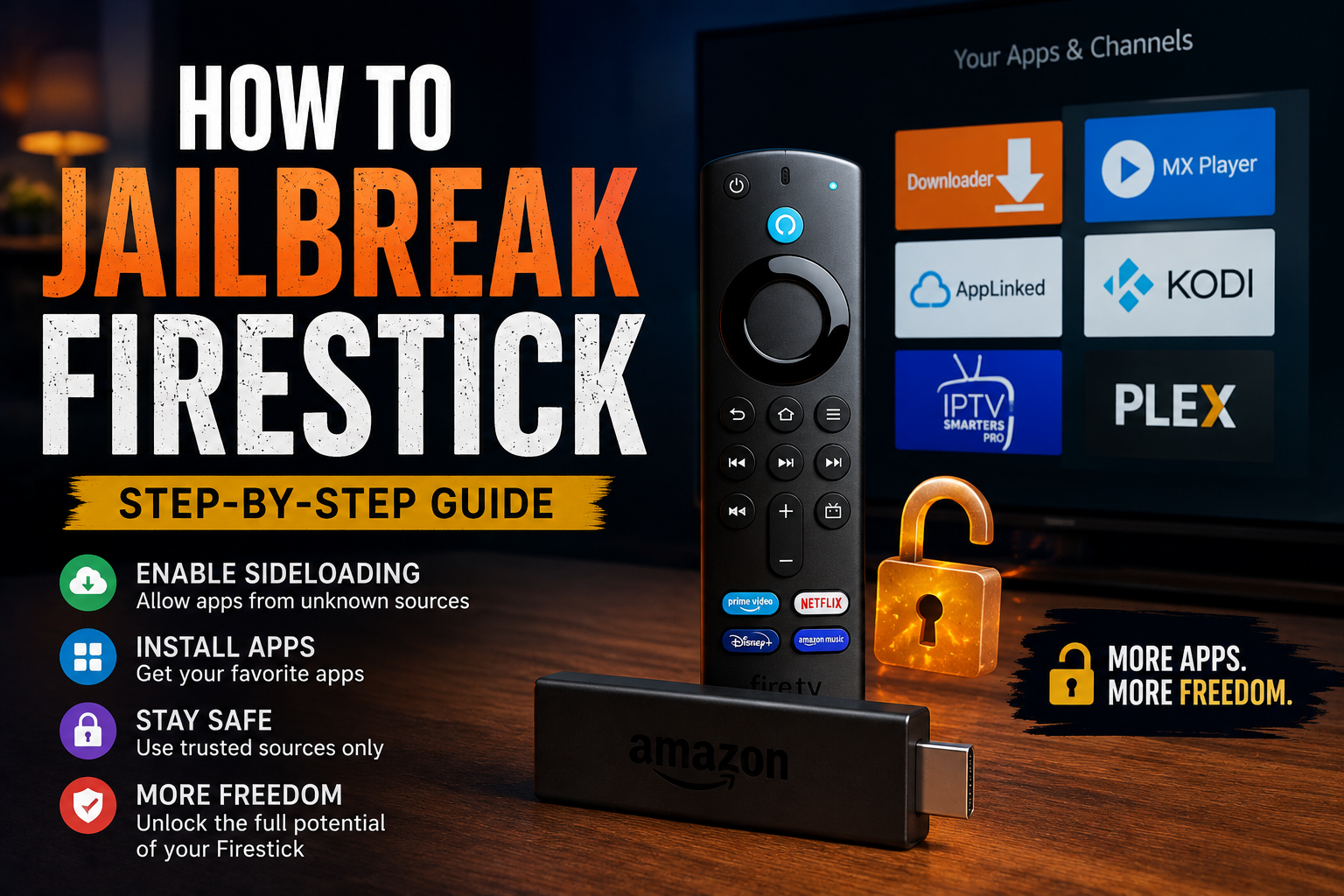
If you are searching for how to jailbreak Firestick, you are probably looking for a way to install apps that are not available through the official Amazon Appstore.
The good news is that you usually do not need to modify the Fire TV Stick’s operating system to do this. In everyday use, the term “jailbreak a Firestick” usually refers to changing a few settings so that you can install compatible apps from sources outside Amazon’s official app store.
This guide explains what Firestick jailbreaking means, how the process works, and what you should know before installing third-party applications.
What Does Jailbreaking a Firestick Mean?
A Firestick jailbreak is not a traditional jailbreak like the process sometimes used to modify smartphones.
Instead, Fire TV users commonly use the term to describe sideloading apps onto an Amazon Fire TV device.
Sideloading means installing an application using a source other than the device’s official app store.
After enabling the appropriate installation permissions, you can install compatible applications that are not listed in the Amazon Appstore.
Is It Legal to Jailbreak a Firestick?
In general, changing your Firestick’s settings and installing legitimate third-party applications is not inherently illegal.
The important issue is what you do with the device and the apps you install.
There are many legitimate reasons to sideload an application, including:
- Installing an app that is unavailable in your region
- Testing an app that is not listed in the Amazon Appstore
- Using an open-source application
- Installing software directly from a trusted developer
- Testing your own Fire TV application
However, using third-party applications to access copyrighted movies, television shows, sports, or other content without authorization can create legal and security problems.
What You Need Before Jailbreaking a Firestick
Before you start, make sure you have:
- An Amazon Fire TV Stick or compatible Fire TV device
- A working internet connection
- Your Fire TV remote
- An Amazon account
- Enough available storage
- A trusted source for any third-party application you plan to install
You should also keep your Firestick’s software updated whenever possible.
How to Jailbreak Firestick Step by Step
The exact menus can vary depending on your Fire TV model and software version, but the general process is straightforward.
Step 1: Open Fire TV Settings
From the Fire TV home screen, open Settings.
Look for the section related to My Fire TV, Device & Software, or a similarly named device-management option.
Amazon occasionally changes the wording and location of these settings with Fire OS updates.
Step 2: Find Developer Options
Open the developer-related settings.
On some Fire TV versions, developer options may be hidden until you select the device name several times.
Once the developer menu becomes available, you can review the installation and debugging options provided by Fire OS.
Step 3: Allow Installation From Unknown Sources
Look for the setting that controls whether applications can be installed from sources outside the Amazon Appstore.
Depending on your Fire OS version, this may appear as Install unknown apps rather than the older Apps from Unknown Sources option.
Enable this permission only for the application you trust and intend to use for installing your software.
Step 4: Install a Sideloading Tool
A commonly used approach is to install a legitimate downloader or file-management application available through the Amazon Appstore.
Such an application can allow you to retrieve an application installation file from a source you trust.
Be careful about where you obtain installation files. A website offering a popular app for free does not automatically mean that the file is safe.
Step 5: Download the App You Want
Once your sideloading method is configured, you can obtain the compatible application installation package from its legitimate developer or official distribution source.
Check that:
- The application supports Fire TV
- The source is trustworthy
- The file matches the expected application
- The app does not request unnecessary permissions
Avoid random APK websites when an official source is available.
Step 6: Install the Application
After downloading a compatible installation package, follow the on-screen instructions to install it.
Once installation is complete, you can usually find the application in your Fire TV’s installed apps.
You can then move it to a convenient position on your home screen if your Fire TV version supports that option.
Can You Install Any Android App on Firestick?
No.
Although Fire TV is based on Android technology, not every Android application is designed to work correctly on a Fire TV Stick.
An application may depend on:
- Google Play Services
- Touchscreen controls
- Smartphone-specific hardware
- Different screen dimensions
- Hardware features unavailable on Fire TV
- Android components that Fire OS does not provide
An APK can therefore install successfully and still fail to function properly.
How to Uninstall a Sideloaded App
If you no longer want a third-party application, you can generally remove it through your Fire TV’s application-management settings.
Go to your installed applications, select the application you want to remove, and choose the uninstall option.
Removing unused applications can also help free up storage space.
Is Jailbreaking a Firestick Safe?
The biggest risk is usually not the act of enabling sideloading itself. The greater risk comes from installing software from unreliable sources.
A malicious or modified application can potentially expose your device or personal information to security threats.
Before installing an unfamiliar application, consider:
- Who developed it?
- Where did the installation file come from?
- Is the developer’s website legitimate?
- Does the application have unnecessary permissions?
- Are other users reporting suspicious behavior?
- Is there an official version available instead?
If you do not trust the source, do not install the application.
Does Jailbreaking Slow Down a Firestick?
Simply enabling the ability to install third-party apps does not necessarily make a Firestick slower.
Performance problems are more likely to come from the applications you install or from limited device resources.
A Firestick can become sluggish when it has:
- Too many applications
- Very little free storage
- Resource-heavy applications running in the background
- Outdated software
- Excessive cached data
Removing applications you no longer use can help keep the device responsive.
Will Jailbreaking Void Your Firestick Warranty?
The term “jailbreak” can make the process sound more invasive than it actually is.
If you are simply changing Fire TV settings and installing compatible applications, you are not necessarily modifying the Firestick’s firmware or physically altering the hardware.
However, installing unofficial software can introduce risks, and Amazon’s current terms, software policies, and warranty conditions should always be checked before making changes to your device.
Can You Still Use the Amazon Appstore?
Yes.
Enabling sideloading does not normally mean that you lose access to the Amazon Appstore.
You can continue using officially supported applications while also installing compatible software from other sources.
This is one reason the term “jailbreak” can be misleading. In many cases, you are simply enabling an additional method of installing applications.
What Should You Avoid After Jailbreaking a Firestick?
Be particularly cautious with applications that promise unlimited access to premium content for free.
Some unofficial streaming applications may distribute copyrighted material without permission. Others may contain aggressive advertising, malware, tracking components, or modified software.
Avoid applications that:
- Promise every paid streaming service for free
- Ask for unnecessary personal information
- Require suspicious permissions
- Come from unknown download sites
- Disable security protections
- Ask you to enter sensitive account credentials without a legitimate reason
A good rule is simple: if the offer sounds too good to be true, investigate the application before installing it.
Frequently Asked Questions
Can I jailbreak a Firestick without a computer?
Yes. The basic sideloading process can generally be performed directly on a compatible Fire TV device without connecting it to a computer.
Do I need to root my Firestick?
No. Rooting the device is not normally required for the type of sideloading that people commonly call a Firestick jailbreak.
Can I install apps not available on Amazon’s Appstore?
Yes, provided the application is compatible with Fire TV and you obtain it from a trustworthy source.
Does jailbreaking give me free Netflix or Prime Video?
No. Jailbreaking or sideloading does not legitimately unlock paid streaming subscriptions.
Can a Firestick be returned to its original setup?
Yes. You can uninstall third-party applications and disable relevant installation permissions if you no longer want to sideload apps.
Final Thoughts
When people search for how to jailbreak Firestick, they are usually looking for a way to install applications outside the Amazon Appstore.
The process is better understood as sideloading rather than hacking or permanently modifying the Firestick. You can enable the necessary installation permissions, use a trusted method to install compatible applications, and continue using the normal Fire TV experience.
The most important part is choosing your applications carefully. Stick to legitimate developers and trusted sources, keep your Firestick updated, and avoid software that promises unauthorized access to paid content.
That approach gives you more flexibility without unnecessarily exposing your Fire TV device to security, privacy, or legal risks.