
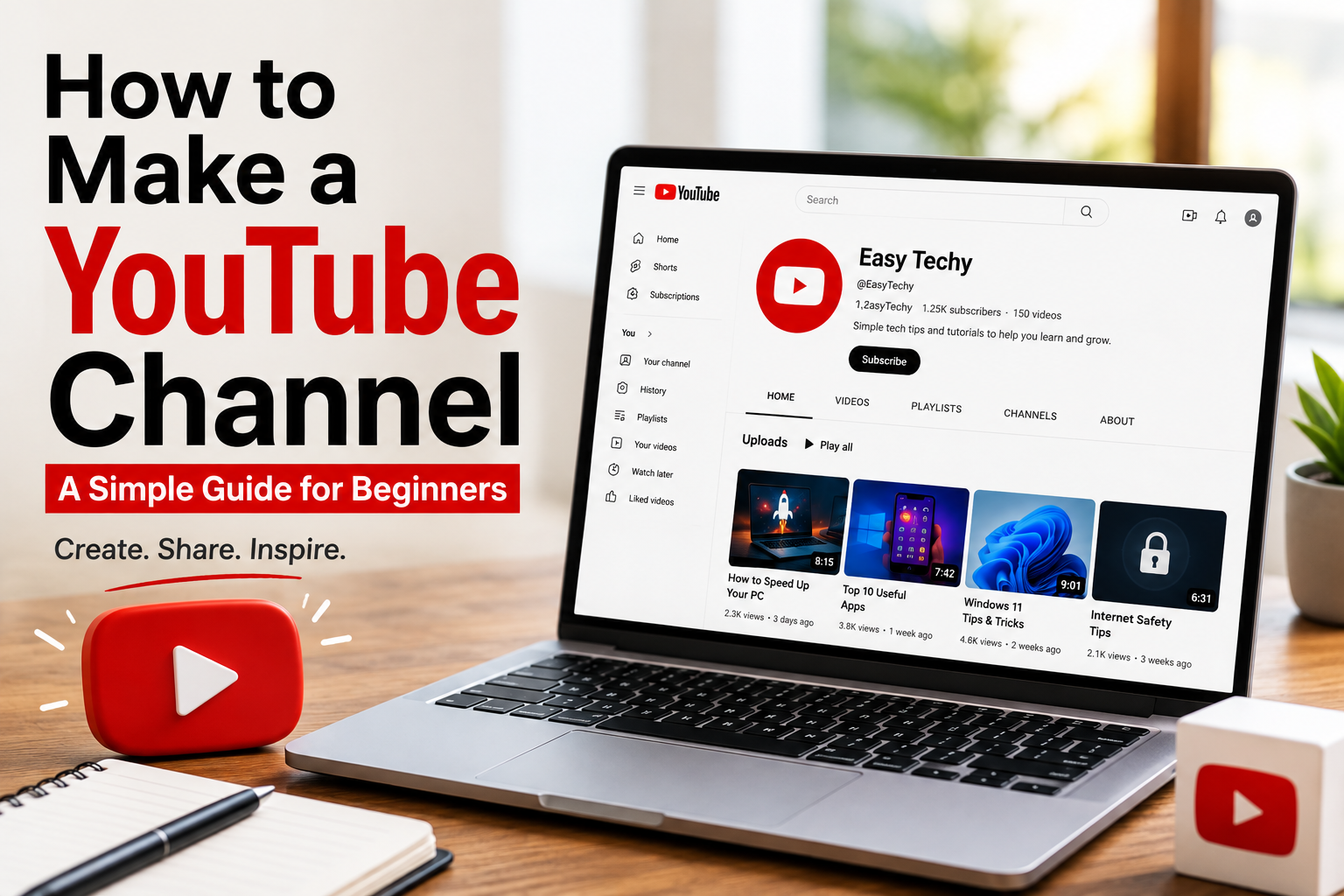
Starting a YouTube channel is easier than you might think. You only need a Google Account, a channel name, and an idea for the type of videos you want to create.
You don’t need expensive equipment or professional editing skills to get started. A smartphone can be enough for your first videos.
Here’s how to set up your channel and get it ready for your first upload.
What You Need Before You Start
Before creating your channel, make sure you have a Google Account. You’ll also need a name for your channel and a profile picture.
It’s useful to decide what your channel will be about before you begin. You could create videos about technology, cooking, gaming, travel, education, music, or any other topic you enjoy.
Step 1: Sign In to YouTube
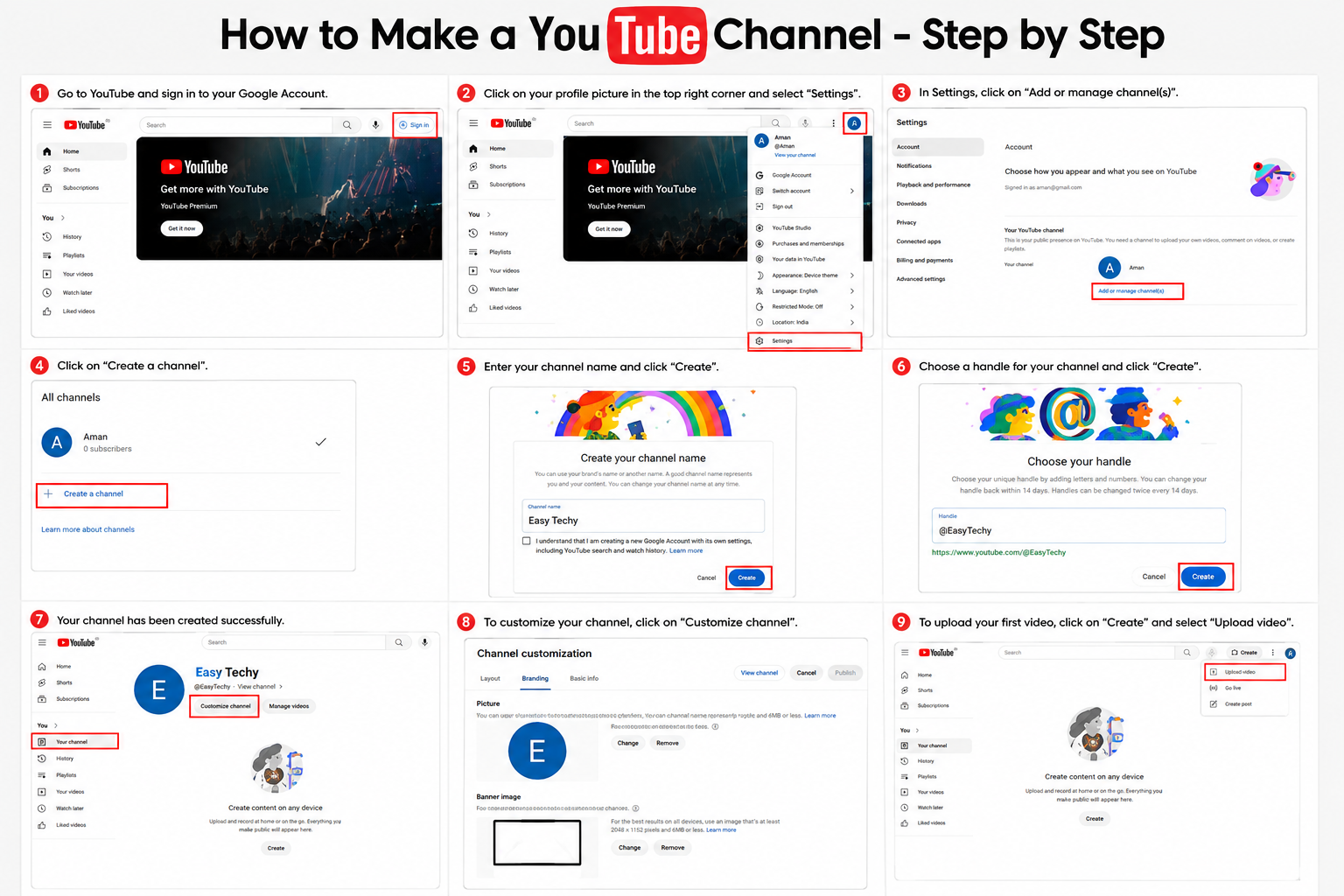
Open YouTube in your browser and sign in with your Google Account.
After signing in, click your profile picture in the top-right corner.
Step 2: Open Settings
From the profile menu, select Settings.
On the Settings page, look for Add or manage channel(s) and select it.
This is where you can view your existing channels or create a new one.
Step 3: Create Your Channel
Click Create a channel to start the setup.
YouTube will ask you to enter some basic information. Start by choosing your channel name.
You can use your real name, a business name, or a name related to your content. Try to choose something simple that people can remember easily.
Step 4: Choose a Handle
Next, choose your YouTube handle. A handle starts with the @ symbol, such as @EasyTechy.
Your handle is unique and helps people find or mention your channel.
If possible, keep it similar to your channel name.
Step 5: Finish the Setup
Check your channel name and handle, then click Create channel.
Your channel is now ready.
Before uploading videos, it’s a good idea to add some basic information and branding.
Customize Your Channel
Open YouTube Studio and select Customization.
You can add a profile picture, channel banner, description, and other information from here.
Add a Profile Picture
Use a clear photo if the channel is personal. If you’re creating a channel for a company or brand, you can use a logo.
Choose an image that is easy to recognize even when it appears as a small icon.
Add a Channel Banner
Your banner appears at the top of your channel page.
YouTube recommends a 2560 × 1440 pixel banner. Keep important text and logos toward the center so they remain visible on different devices.
You can use the banner to show your channel name, topic, or a short tagline.
Add a Description
Write a short description that explains what viewers can expect from your channel.
For example:
Welcome to Easy Techy. We share simple technology tips, app guides, computer tutorials, and useful tech tricks for beginners.
Keep it clear and avoid filling it with keywords.
Upload Your First Video
When your channel is ready, open YouTube Studio and click Create in the top-right corner.
Select Upload videos and choose the video you want to publish.
You’ll then need to add some basic information.
Add a Title
Write a clear title that tells viewers what the video is about.
For example, instead of “My First Video,” you could use How to Create a YouTube Channel for Beginners.
Add a Description
Write a short description explaining what viewers will learn or see in the video.
Add a Thumbnail
Choose or upload a thumbnail that clearly represents your video. Keep the design simple and make sure any text is easy to read.
Set the Audience
YouTube will ask whether the video is made for kids. Select the option that accurately describes your content.
Choose Visibility
You can publish the video as Public, keep it Private, or make it Unlisted.
You can also schedule it to become public later.
Once everything looks correct, click Publish.
Creating a Channel for a Business
You can create a channel using a business or brand name instead of your personal name.
For example, a company could create a channel called Easy Techy rather than using the owner’s name.
YouTube also supports Brand Accounts, which can be useful when multiple people need to manage a channel.
Do You Need Expensive Equipment?
No. A smartphone is enough to start.
Focus on creating useful videos rather than spending a lot of money on equipment. As your channel grows, you can upgrade your camera, microphone, lighting, and editing tools.
What Should You Post?
Choose a topic that you know or enjoy. This makes it easier to keep creating videos.
For example, a technology channel could publish tutorials, smartphone tips, app guides, and troubleshooting videos.
A cooking channel could focus on simple recipes, quick meals, and cooking tips.
Start with a few useful ideas instead of waiting until you have a perfect content plan.
Tips for a New Channel
Keep your channel focused on a clear topic and make videos that help, educate, or entertain your viewers.
Use accurate titles and simple thumbnails. Upload on a schedule that you can maintain, even if that’s only once a week.
Most importantly, don’t expect your first videos to be perfect. You’ll learn more about recording, editing, titles, thumbnails, and your audience as you continue creating.
Final Thoughts
Creating a YouTube channel only takes a few minutes. Sign in with your Google Account, choose your channel name and handle, customize your profile, and upload your first video.
You don’t need expensive equipment or a large audience to begin. Start with what you have, create useful content, and improve your channel as you grow.