
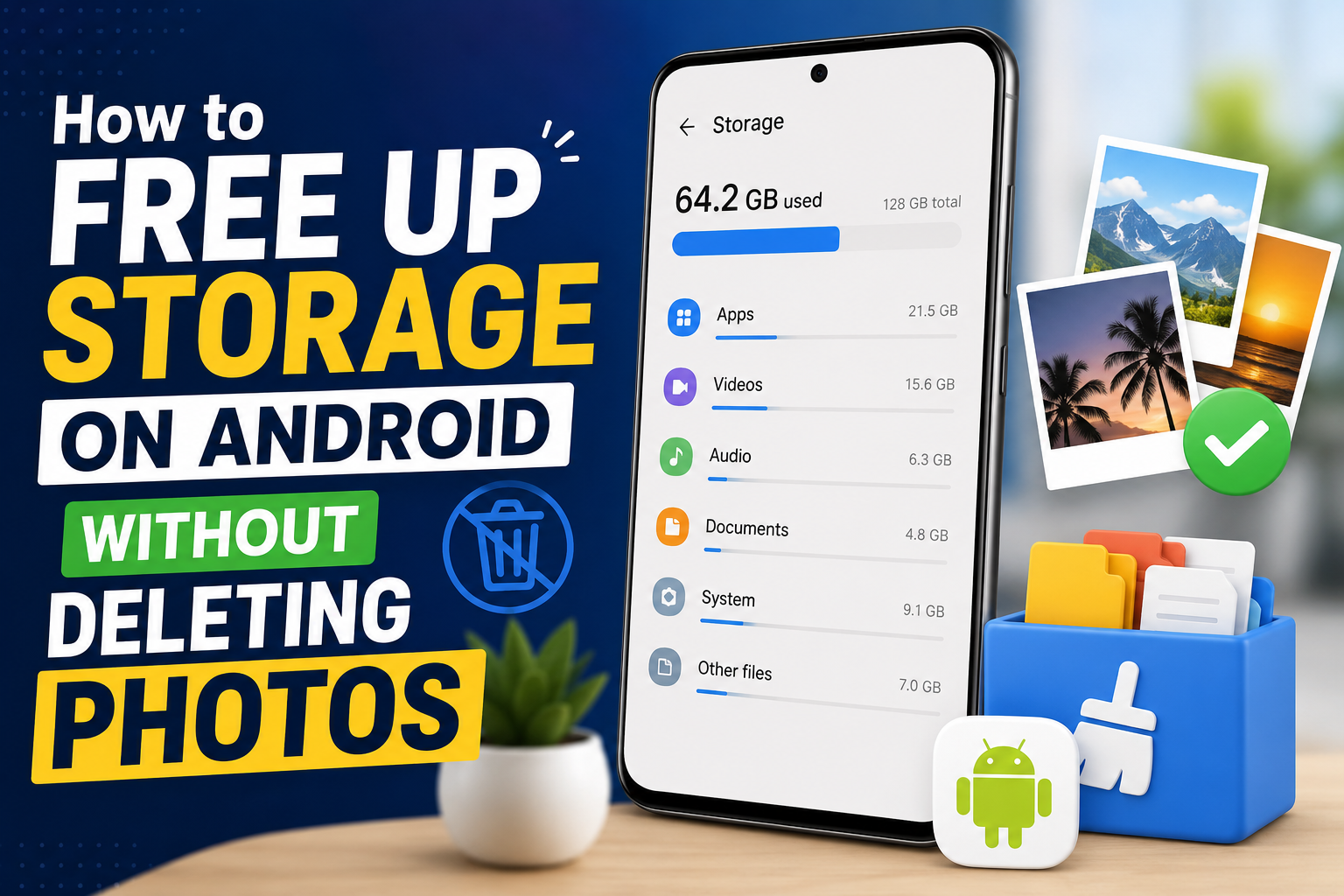
Running out of storage on an Android phone can be frustrating, especially when the phone contains important photos that you do not want to lose. Fortunately, deleting photos is not the only way to create more free space.
Android phones store many different types of files. Apps, cached data, downloaded files, videos, screenshots, messaging apps, and offline content can slowly use up storage. By cleaning these areas, it is often possible to free up a significant amount of space without deleting important photos.
This guide explains simple and safe ways to free up storage on Android while keeping your photos.
Check What Is Using Your Android Storage
Before deleting anything, it is important to find out what is taking up the most space. Android provides a storage section that shows how the available space is being used.
On many Android phones, this can be found under Settings → Storage. The exact location may be different depending on the phone manufacturer and Android version.
The storage screen usually shows categories such as apps, images, videos, documents, audio, and other files. Checking these categories first makes it easier to find unnecessary files instead of deleting things randomly.
For example, if apps are using most of the storage, removing unused apps may help more than touching the photo library. Similarly, if videos are taking up most of the space, reviewing large videos may be a better option.
Clear App Cache to Free Up Space
Apps create temporary files called cache data. These files can help apps load content faster, but they can become large over time.
Social media apps, web browsers, shopping apps, and streaming services can collect a considerable amount of cached data. Clearing this cache can sometimes recover useful storage without removing personal photos.
To clear an app’s cache, the usual steps are:
Settings → Apps → Select the app → Storage → Clear cache
The exact menu names can vary between Android phones.
It is important to select Clear cache rather than Clear storage or Clear data. Clearing an app’s storage can remove saved information and may reset the app, while clearing the cache mainly removes temporary files.
Remove Apps That Are No Longer Used
Unused apps can take up more storage than expected. Games are particularly important to check because some games download additional files after installation.
Open the list of installed apps and look for applications that have not been used for a long time. If an app is no longer needed, uninstalling it can immediately create more free space.
Removing an unused app does not normally affect photos stored in the phone’s photo library. However, it is still a good idea to check whether the app contains any important files before uninstalling it.
If an app is needed only occasionally, another option may be to use its web version when available instead of keeping the app installed.
Clean Up the Downloads Folder
The Downloads folder can become a hidden source of storage problems. Files downloaded from websites, emails, messaging apps, and other services may remain on the phone long after they are needed.
These files can include PDFs, documents, ZIP files, APK files, images, and videos. Some large files may also be downloaded more than once.
Open the Files, My Files, or another file manager app and review the Downloads folder. Delete files that are no longer useful, but check them before removing them.
This is one of the safest ways to free up storage because important photos do not need to be touched.
Check WhatsApp and Other Messaging Apps
Messaging apps can use a large amount of storage because they often save photos, videos, documents, GIFs, and voice messages received in chats.
WhatsApp, in particular, can slowly fill a phone with media files. Instead of deleting everything, check which conversations and files are using the most storage.
In WhatsApp, the storage management section can usually be found under:
Settings → Storage and data → Manage storage
From there, large files and frequently forwarded files can be reviewed and removed when they are no longer needed.
This approach is better than deleting the entire WhatsApp folder because it allows important conversations and files to be kept.
Reduce Automatic Media Downloads
Cleaning WhatsApp once may not solve the problem if new media continues to download automatically.
WhatsApp provides settings for controlling automatic media downloads. Adjusting these settings can prevent unnecessary photos, videos, and other files from being downloaded to the phone.
For example, automatic video downloads can be limited so that only videos that are actually needed are saved to the device.
Delete Large and Unnecessary Videos
When storage is low, videos are worth checking because they usually require much more space than photos.
A few long recordings can use hundreds of megabytes or even several gigabytes. Screen recordings, downloaded videos, old recordings, and duplicate videos are especially useful to review.
Open the phone’s Gallery or Photos app and check the video section. Remove videos that are no longer needed, or move important videos to a computer or cloud storage before removing the local copies.
This can create a large amount of free space without deleting valuable photos.
Remove Old Screenshots
Screenshots are another type of file that can build up over time. Many screenshots are taken for temporary purposes and are no longer needed after a few days or weeks.
For example, a phone may contain screenshots of shopping orders, receipts, conversations, maps, addresses, tickets, and social media posts.
Review the screenshots folder and remove files that are no longer useful. Since these files are separate from regular camera photos, cleaning them can free up space without affecting the main photo collection.
Delete Old Screen Recordings
Screen recordings can also consume a significant amount of storage. A long screen recording can be much larger than a normal screenshot or photo.
Check the Gallery or Files app for old screen recordings. If a recording has already been shared, saved somewhere else, or is no longer useful, it can be removed from the phone.
Important recordings should be backed up before deletion.
Remove Offline Downloads
Many apps allow users to download content for offline use. This is useful when an internet connection is unavailable, but downloaded content can remain on the phone for a long time.
Depending on the apps being used, offline files may include music, movies, TV shows, podcasts, maps, and documents.
Open the apps that provide offline downloads and check what is stored locally. Removing content that is no longer needed can recover storage without affecting personal photos.
Find and Remove Duplicate Files
Duplicate files can use storage without providing any real benefit. The same image, video, document, or downloaded file may sometimes be saved multiple times.
Some Android phones include built-in storage management tools that can identify duplicate or unnecessary files. Certain file manager apps also provide similar features.
However, duplicate suggestions should always be reviewed before deletion. Two files may look similar but contain different information, so automatic deletion should be used carefully.
Back Up Photos Instead of Deleting Them
If photos are using most of the available storage, cloud backup can provide another solution.
Services such as Google Photos can back up photos and videos to a cloud account. After confirming that the files have been backed up, the local copies can be removed from the device using the available storage management options.
This allows photos to remain available in the cloud while creating more space on the phone.
Always Check the Backup First
Photos should never be removed simply because they appear to be backed up.
Before freeing up space, make sure the backup has completed successfully. Open the cloud photo library and check that important photos and videos are available there.
This extra check can prevent accidental loss of valuable memories.
Move Large Files to a Computer
Cloud storage is not the only option for keeping important files.
An Android phone can usually be connected to a computer with a USB cable. Large videos, documents, and other files can then be copied to the computer.
After confirming that the files were copied correctly, the phone’s local copies can be removed. This is especially useful for people who want to keep their files but do not want to use additional cloud storage.
Use an SD Card If the Phone Supports It
Some Android phones support microSD cards, although many newer phones do not include an SD card slot.
If a phone supports expandable storage, a microSD card can provide additional space for supported photos, videos, music, and documents.
The exact features depend on the phone and Android version. Not every app or type of data can be moved to an SD card, so the phone’s specifications should be checked first.
It is also important to use a reliable storage card and keep backups of important files.
Use Android’s Built-In Storage Tools
Many Android phones include built-in tools that suggest ways to recover storage. These tools may identify unused apps, large files, duplicate files, old downloads, or other unnecessary data.
Using the built-in storage recommendations can be a quick way to find files that might otherwise be forgotten.
However, suggested files should still be reviewed before anything is deleted. This helps prevent important documents, videos, or other personal files from being removed accidentally.
What Should Not Be Deleted?
Freeing up storage does not mean deleting every file that looks unfamiliar. Some files are required by Android or by installed apps.
Avoid deleting system files unless their purpose is clearly understood. App data should also be handled carefully because deleting it can reset an application or remove locally stored information.
Photos and videos should be checked before deletion, particularly if they have not been backed up. When there is any doubt about a file, it is safer to leave it alone until its purpose has been confirmed.
How Much Free Storage Should an Android Phone Have?
There is no single amount of free storage that every Android phone needs. However, keeping some free space is important because Android and installed apps need room for temporary files, updates, downloads, and normal operations.
A phone that is almost completely full may also become harder to manage because there is little room for new files or app updates.
Keeping several gigabytes free is a useful practical target for many users, although the ideal amount depends on the phone’s total storage and how it is used.
Quick Ways to Free Up Android Storage Without Deleting Photos
When storage is almost full, the following steps are a good place to start:
- Check the storage breakdown in Android settings.
- Clear the cache of apps that use a lot of space.
- Uninstall apps that are no longer needed.
- Clean the Downloads folder.
- Review WhatsApp and other messaging media.
- Remove large and unnecessary videos.
- Delete old screenshots and screen recordings.
- Remove unused offline downloads.
- Find and review duplicate files.
- Move important large files to a computer or cloud storage.
These steps can recover storage while keeping important photos safe.
Final Thoughts
Freeing up storage on Android does not always require deleting photos. In many cases, a phone contains plenty of unnecessary files that can be removed first.
Start by checking which categories are using the most storage. Then focus on unused apps, cached data, downloads, messaging media, large videos, screenshots, screen recordings, and offline content.
If photos are responsible for most of the storage usage, backing them up before removing local copies can provide a safer solution.
The most important rule is simple: check what a file is before deleting it. A careful cleanup can create more free space while keeping important photos and personal files safe.