
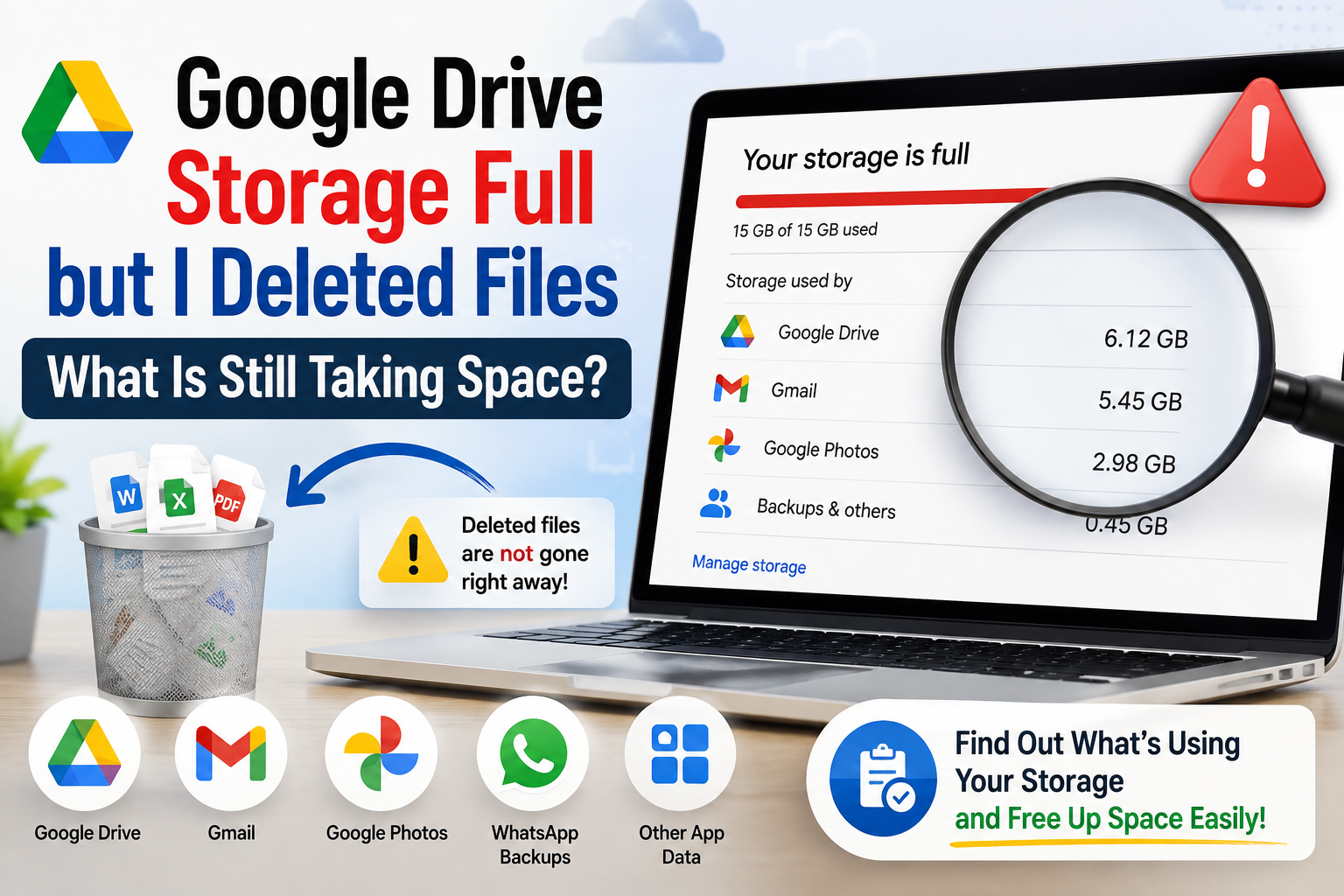
You deleted a lot of files from Google Drive, but your Google storage still says it is full.
This can be confusing. You may think that deleting files should immediately give you more space.
However, your Google storage is shared by Google Drive, Gmail, Google Photos, and some other Google services. So the files you deleted from Drive may not be the only thing using your storage.
Here are the most common reasons your storage is still full.
1. Your Deleted Files Are Still in the Drive Trash
When you delete a file in Google Drive, it is moved to the Trash.
Files in the Trash still count toward your storage until they are permanently deleted.
To free the space:
- Open Google Drive.
- Open Trash.
- Check that you do not need anything there.
- Click Empty Trash.
Be careful before emptying the Trash because permanently deleted files may not be recoverable.
2. Your Gmail Is Using Your Storage
Your Google storage is not only for Drive.
Large Gmail emails and their attachments also use your Google storage. Gmail’s Trash and Spam can also count toward your storage limit.
You may have deleted hundreds of Drive files and still have very little free space because Gmail contains large attachments.
To find large emails, search Gmail for:
has:attachment larger:10M
This shows emails with attachments larger than 10 MB.
Delete emails you no longer need and then empty the Gmail Trash and Spam folders.
3. Google Photos May Be Using Most of the Space
Your Google Photos storage is also part of the same Google storage limit.
Large videos and high-resolution photos can use a lot of space.
So, if you deleted files from Drive but your Google Photos library is large, your storage may still show as almost full.
Open Google Photos and check your storage usage. Look especially for large videos and photos that you no longer need.
4. WhatsApp Backups Can Use Google Storage
If you use WhatsApp on Android, your WhatsApp backup can also use your Google storage.
This can be easy to miss because the backup does not appear as a normal file inside your Google Drive folders. Google lists WhatsApp backups among the data that can count toward your Google storage.
If your WhatsApp backup is very large, check it through Google’s storage management tools before deleting it.
Be careful with this option. Deleting a WhatsApp backup can mean losing your backup if you later need to restore your chats.
5. Hidden App Data May Be Using Space
Some apps connected to Google Drive can store hidden application data.
This data may not be easy to find when you simply look through your Drive folders.
Google’s storage information also notes that hidden app data can contribute to your Google storage usage.
If you have used older apps that connected to Google Drive, checking your storage manager can help you find unusual storage usage.
6. Your Storage Number May Not Have Updated Yet
If you deleted a large number of files, do not worry if the storage number does not change immediately.
Google says that after deleting a large amount of data, it can take 48 to 72 hours for the storage information to update accurately.
So if you deleted hundreds or thousands of files recently, give Google some time before assuming something is wrong.
7. Check Your Google Storage Breakdown
The easiest way to find what is actually using your space is to check your Google storage breakdown.
Google provides a storage management page that shows how much space is being used by services such as Drive, Gmail, and Google Photos.
This is better than checking only your Google Drive folders.
For example, you might discover that:
- Google Drive uses 4 GB
- Gmail uses 6 GB
- Google Photos uses 4 GB
- Other backups use 1 GB
In this example, deleting another 2 GB from Drive will not solve the whole problem.
What Should You Check First?
If your Google storage is still full after deleting Drive files, check these in order:
1. Empty Google Drive Trash
2. Check Gmail for large attachments
3. Empty Gmail Trash and Spam
4. Check Google Photos for large videos and photos
5. Check WhatsApp and other backups
6. Look for hidden app data
7. Wait up to 48–72 hours if you recently deleted a large amount of data
Final Thoughts
Deleting files from Google Drive does not always mean that your Google storage will immediately become free.
The deleted files may still be in the Trash, or your storage may actually be coming from Gmail, Google Photos, WhatsApp backups, or other Google data.
The best approach is to check your overall Google storage usage, rather than looking only at Google Drive.
Once you know which Google service is using the most space, you can remove the right files instead of deleting more Drive files unnecessarily.