
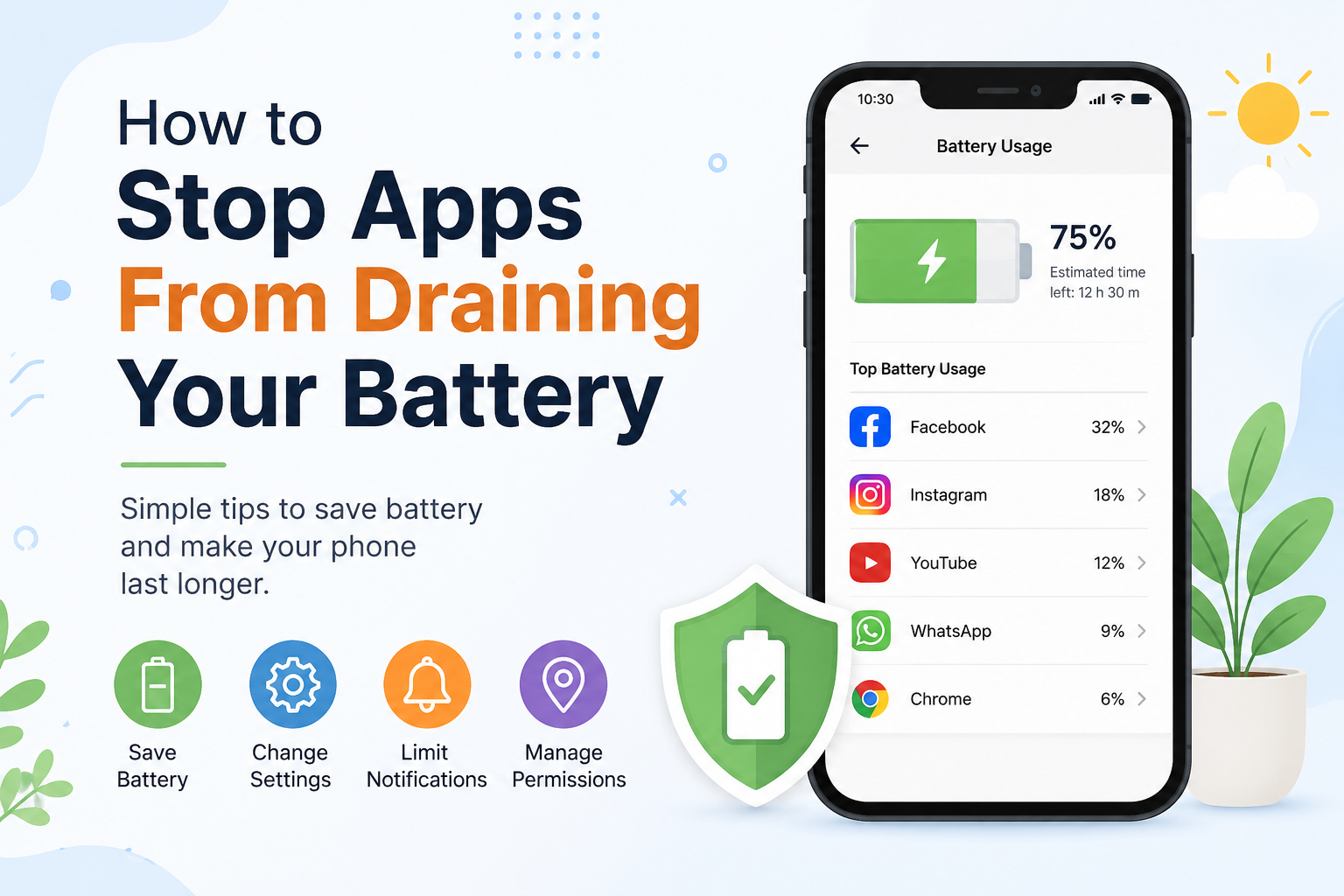
Have you ever charged your phone in the morning, only to see the battery almost empty by the afternoon?
Your phone may not have a battery problem. Sometimes, apps running in the background are the reason your battery is draining so quickly.
Social media apps, video apps, maps, games, shopping apps, and messaging apps can continue using your phone even when you are not actively using them.
The good news is that you can reduce this battery use with a few simple changes.
1. Find Which Apps Are Using Your Battery
Before changing anything, find out which apps are using the most battery.
On most Android phones:
- Open Settings.
- Go to Battery.
- Look for Battery Usage or a similar option.
- Check the list of apps.
- Look for apps that are using a large amount of battery.
On an iPhone:
- Open Settings.
- Tap Battery.
- Scroll down to see battery use by app.
- Check which apps are using the most battery.
If you see an app that you rarely use but it is using a lot of battery, it may be worth changing its settings.
2. Stop Apps From Running in the Background
Some apps continue working even when you close them.
For example, a social media app may check for new posts, messages, or notifications in the background.
You can limit this activity.
On Android, the exact steps depend on your phone. Usually, you can go to:
Settings → Apps → Select the app → Battery
You may see options such as Unrestricted, Optimized, or Restricted.
Choose the option that limits background activity when appropriate.
Be careful with messaging and other important apps. Restricting them too much may delay notifications.
3. Turn Off Location Access for Apps That Don’t Need It
Location services can also use battery.
Some apps do not need to know your location all the time.
For example, a simple shopping app may not need your location when you are not using it.
Check which apps have location permission.
On many phones, you can go to:
Settings → Location → App permissions
Then check the apps that can access your location.
For apps that do not need constant access, choose an option such as While using the app or Don’t allow, depending on what you need.
4. Reduce Unnecessary Notifications
Every notification can wake your phone and use a small amount of battery.
You probably don’t need notifications from every app.
For example, you may want notifications from WhatsApp or your banking app, but you may not need notifications from every shopping or game app.
Go to your notification settings and turn off notifications you don’t need.
This can also make your phone less distracting.
5. Reduce Screen Brightness
Your screen is often one of the biggest battery users.
If your brightness is always very high, your phone can lose battery faster.
Try lowering the brightness to a comfortable level.
You can also turn on automatic brightness if your phone has that option.
The phone will then adjust the brightness based on the light around you.
6. Turn Off Background Refresh for Apps You Don’t Need
Some apps regularly check for new information in the background.
On iPhone, this feature is called Background App Refresh.
You can find it under:
Settings → General → Background App Refresh
You don’t necessarily need to turn it off for every app.
Instead, turn it off for apps that do not need to update themselves when you are not using them.
7. Keep Your Apps Updated
App updates are not only about new features.
Developers also release updates to fix bugs and improve performance.
Sometimes an old version of an app may use more battery because of a problem in the app.
Open the Google Play Store or App Store and check for available updates.
Keeping your important apps updated can help avoid battery problems caused by older versions.
8. Delete Apps You Don’t Use
Take a look at your phone and ask yourself:
“Do I really use this app?”
If you installed an app months ago and have not opened it since, you may not need it.
Some apps can continue using storage, notifications, location, or background activity.
Deleting apps you don’t use can make your phone simpler and may also help reduce unnecessary battery use.
9. Use Battery Saver When You Need It
Most modern phones have a Battery Saver or Low Power Mode.
This feature reduces some background activity and other battery use.
It is especially useful when your battery is already low and you are away from a charger.
For example, if you have 15% battery left and still need your phone for several hours, turn on Battery Saver.
You can usually find it under your phone’s Battery settings.
10. Be Careful With Apps That Constantly Use GPS
Navigation and fitness apps can use a lot of battery because they may use GPS for long periods.
If you are finished using navigation, close the activity or stop navigation.
Also check whether fitness, travel, or other apps really need constant location access.
Giving location access only when needed can help save battery.
11. Restart Your Phone
Sometimes an app can get stuck and continue using resources in the background.
If your battery suddenly starts draining much faster than usual, try restarting your phone.
A simple restart can sometimes fix temporary software problems.
12. Don’t Immediately Blame the Battery
If your phone is several years old, the battery itself may have become weaker.
You can check your phone’s battery health if your device provides that information.
If the battery health is poor, changing app settings may only provide limited improvement.
In that situation, replacing the battery may be a better solution than constantly changing your apps and settings.
A Simple Battery-Saving Routine
You don’t need to change every setting on your phone.
Start with these simple steps:
- Check which apps use the most battery.
- Restrict background activity for unnecessary apps.
- Turn off unwanted notifications.
- Give location access only when needed.
- Lower screen brightness.
- Delete apps you don’t use.
- Keep your apps updated.
- Use Battery Saver when your battery is low.
These small changes can make a noticeable difference.
Final Thoughts
Apps can be a major reason why your phone battery drains quickly, especially when they keep working in the background.
The first thing you should do is check your battery usage. Once you know which apps are using the most power, you can decide what to change.
You don’t need to turn off everything or delete all your apps. Just remove unnecessary background activity and permissions.
And if your battery is still draining quickly after doing this, the battery itself may be getting old.