
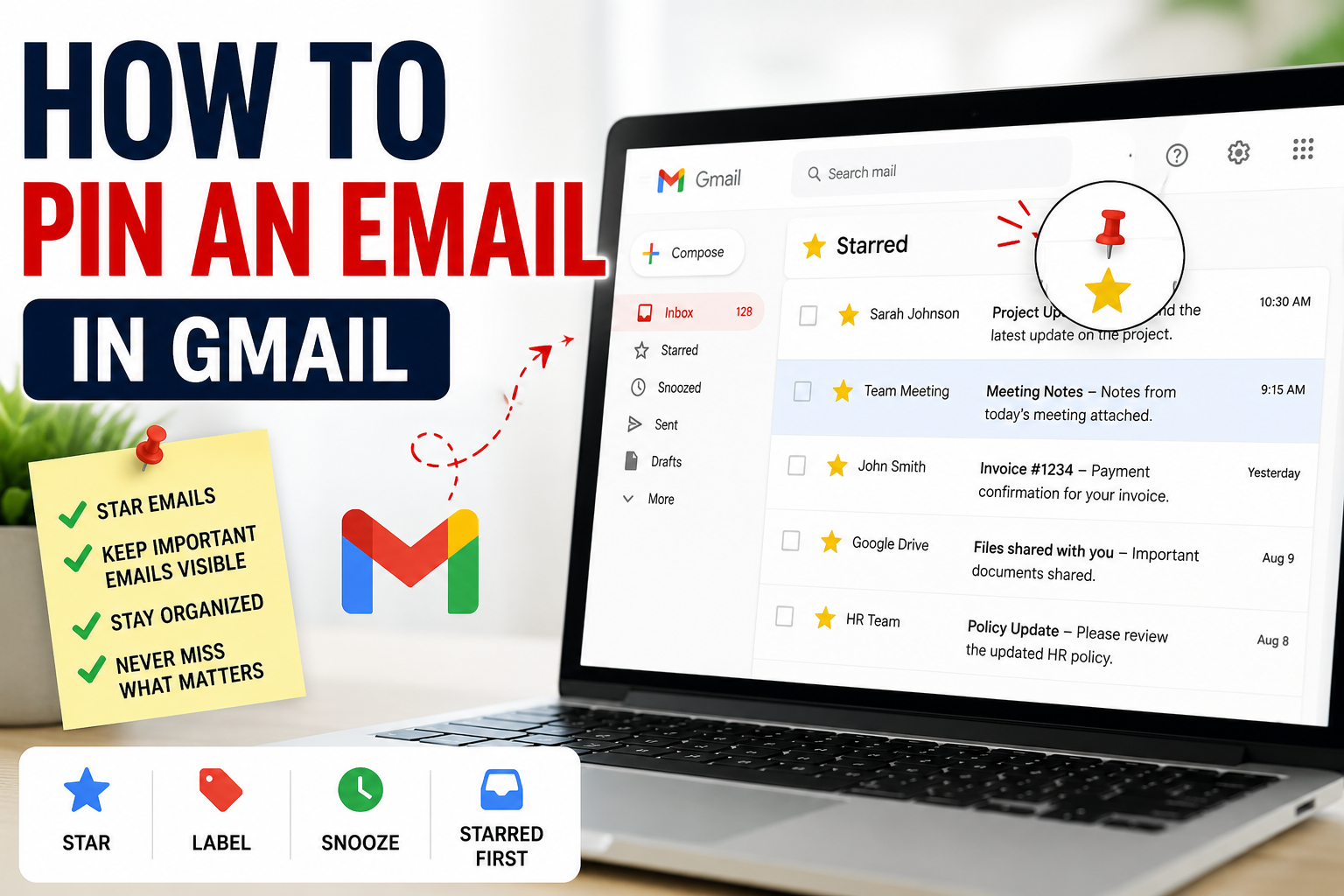
Have you ever received an email that you really need to keep in front of you, but it slowly disappears under dozens of new messages?
Maybe it is a job offer, an important document, a payment confirmation, a meeting detail, or an email you need to reply to later.
You may then look for a Pin button in Gmail.
But here is the important part:
Gmail does not currently have a normal “Pin email” button like some other apps.
So, how do you keep an important email easy to find?
The good news is that Gmail already has a few simple tools that can do almost the same job.
In this guide, we will show you the easiest way to keep important emails close at hand without making your inbox messy.
Can You Actually Pin an Email in Gmail?
No. Gmail does not currently offer a dedicated feature that lets you pin an email to the top of your inbox.
Instead, Gmail gives you tools such as Star, Label, Snooze, and different inbox layouts to keep important messages easy to access. Google’s own Gmail help documentation recommends starring, labeling, snoozing, or organizing emails rather than pinning them.
For most people, starring an email is the closest and easiest replacement for pinning it.
The Easiest Way: Star the Email
Think of a star as your personal bookmark.
You see an important email.
You click the star.
Done.
The email is now marked so you can quickly find it later.
How to Star an Email on Gmail
- Open Gmail on your computer.
- Find the email you want to keep easy to access.
- Look to the left of the email.
- Click the star icon.
- The star will turn on.
You don’t need to open the email first.
If the email is already open, you can also click More and choose Add star.
Where Do You Find Your Starred Emails?
This is where the star becomes useful.
You don’t have to search through your entire inbox again.
On the left side of Gmail, click Starred.
You will see the emails you have marked with a star.
If you don’t see Starred, click More in the left sidebar.
Google also allows you to search for starred emails by typing:
is:starred
into the Gmail search box.
This is one of the simplest ways to create your own “important emails” area.
Want Important Emails at the Top?
There is another clever Gmail trick.
Instead of trying to pin individual emails, you can change your inbox layout so your starred emails appear in their own section near the top.
Here’s how.
- Open Gmail.
- Click the Settings icon in the top-right corner.
- Find Inbox type.
- Select Starred first.
Gmail will then divide your inbox into two sections:
Starred
and
Everything else
Your starred emails will appear in the first section.
This is probably the closest experience to having pinned emails at the top of Gmail.
Use a Label If You Have Many Important Emails
A star is great when you only have a few important emails.
But what if you have 20, 50, or 100?
A label can be better.
For example, you could create a label called:
Important
or
Follow Up
or
Work – Important
Then apply that label to the emails you want to keep organized.
How to Create a Gmail Label
- Open Gmail.
- Look at the left side of the screen.
- Next to Labels, click Create new label.
- Give the label a name.
- Click Create.
Google allows you to create labels and use them to organize messages into categories.
How to Add the Label to an Email
- Select the email.
- Click the Labels button at the top.
- Select your label.
- The label will now appear on that email.
You can then click the label from Gmail’s left sidebar whenever you want to see those messages.
Star + Label: The Best Combination
You don’t have to choose just one method.
For example, imagine you receive an email about an upcoming job interview.
You could:
Star it → so you can quickly spot it.
Label it “Job Search” → so you can find related emails together.
This gives you both speed and organization.
The star answers:
“Which emails do I need to notice?”
The label answers:
“Which group does this email belong to?”
What If You Need the Email Later?
Sometimes an email isn’t important right now, but you know you’ll need it at a particular time.
That’s when Snooze can be more useful than a star.
For example, suppose someone sends you an email on Monday and asks you to reply on Friday.
Instead of leaving it in your inbox all week, snooze it.
When the selected date and time arrives, Gmail will bring the email back to your inbox.
To snooze an email:
- Point your mouse at the email.
- Click the Snooze icon.
- Choose a date and time.
It’s like telling Gmail:
“Don’t make me think about this right now. Bring it back when I need it.”
Can You Pin an Email on the Gmail Mobile App?
Gmail’s mobile app also does not provide a normal pin-to-top feature for emails.
Instead, you can use stars, labels, snooze, and Gmail search to find important messages.
On Android, for example, Gmail provides search tools, labels, search operators, and other ways to locate messages quickly.
If you need to find a starred email, you can search for:
is:starred
You can also search for a specific sender, subject, date, attachment, or other information.
A Faster Way to Find Any Important Email
Here’s a Gmail trick many people overlook.
Instead of scrolling through hundreds of emails, search for the email.
For example, you can search:
from:john@example.com
or:
has:attachment
or:
is:starred
You can also combine search operators to make your search more specific. Gmail supports search operators for senders, dates, attachments and other email properties.
This can be much faster than manually looking through your inbox.
So, What Is the Best Alternative to Pinning?
It depends on what you want.
If you want to quickly mark one important email, use a Star.
If you want to keep many related emails together, use a Label.
If you want Gmail to bring an email back later, use Snooze.
If you want your important messages visible near the top of your inbox, use Starred first.
And if you simply want to find something quickly, use Gmail’s search.
Final Answer
Gmail doesn’t currently have a dedicated Pin Email button.
But you don’t really need one.
For most users, the simplest solution is to star the email and, if you want starred messages to stay near the top, change your inbox type to Starred first.
It takes only a few clicks and gives you almost the same benefit as pinning.
The bigger idea is simple:
Don’t try to keep every important email at the top. Mark the important ones so Gmail can help you find them when you need them.
That keeps your inbox cleaner and makes important emails much easier to manage.