
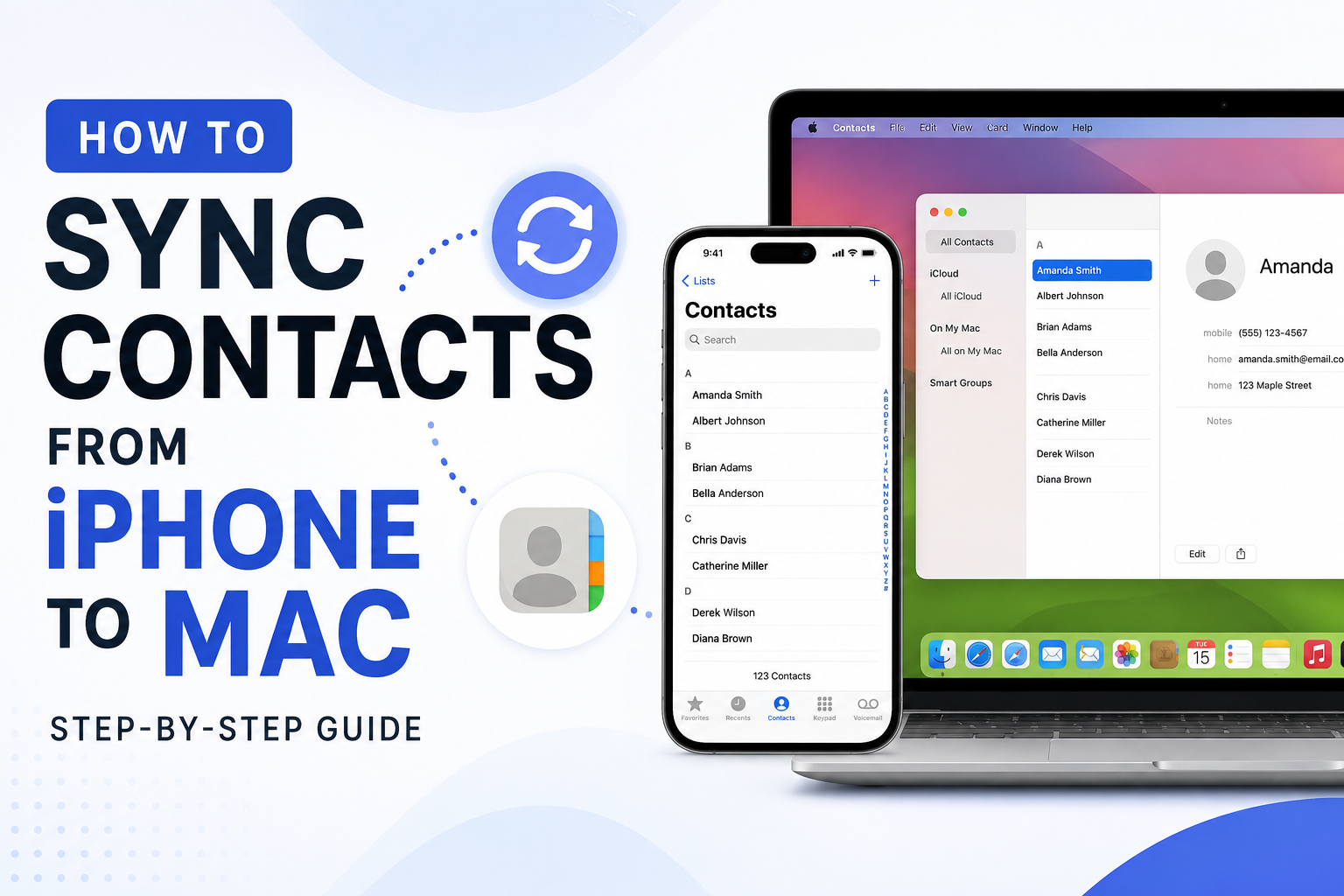
Keeping your contacts synced between your iPhone and Mac ensures you always have the latest phone numbers, email addresses, and other contact details available across your Apple devices. Whether you’re sending an email from your Mac, making a FaceTime call, or using iMessage, having your contacts automatically updated saves time and improves your workflow.
The good news is that Apple makes this process simple through iCloud. If you don’t use iCloud, there are also alternative methods such as Google Contacts, Finder, and AirDrop.
In this guide, you’ll learn how to sync contacts from your iPhone to your Mac using different methods and discover solutions if your contacts aren’t syncing properly.
Why Should You Sync Contacts Between iPhone and Mac?
Syncing contacts offers several benefits, including:
- Access your contacts from both your iPhone and Mac.
- Automatically update changes across all your Apple devices.
- Prevent losing contacts if your iPhone is damaged or replaced.
- Easily use contacts in FaceTime, Mail, Messages, and other Apple apps.
- Keep your personal and business contacts organized.
Method 1: Sync Contacts Using iCloud (Recommended)
For most Apple users, iCloud is the easiest and most reliable way to keep contacts synchronized.
Step 1: Enable Contacts on Your iPhone
- Open Settings.
- Tap your Apple Account at the top.
- Select iCloud.
- Tap See All if available.
- Turn Contacts ON.
- If prompted, tap Merge.
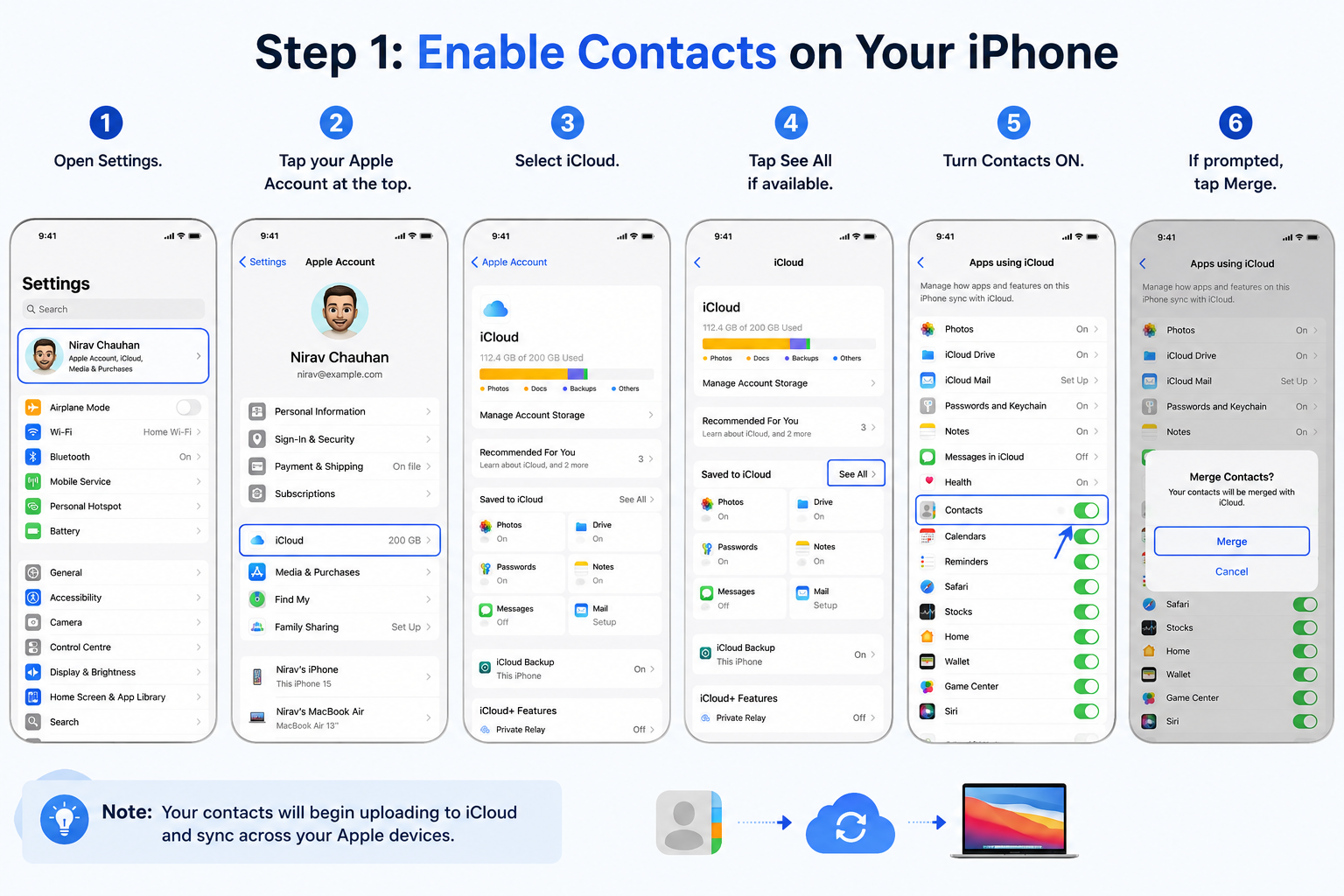
Your contacts will begin uploading to iCloud.
Step 2: Enable Contacts on Your Mac
- Open System Settings.
- Click your Apple Account.
- Select iCloud.
- Turn Contacts ON.
- Open the Contacts app.
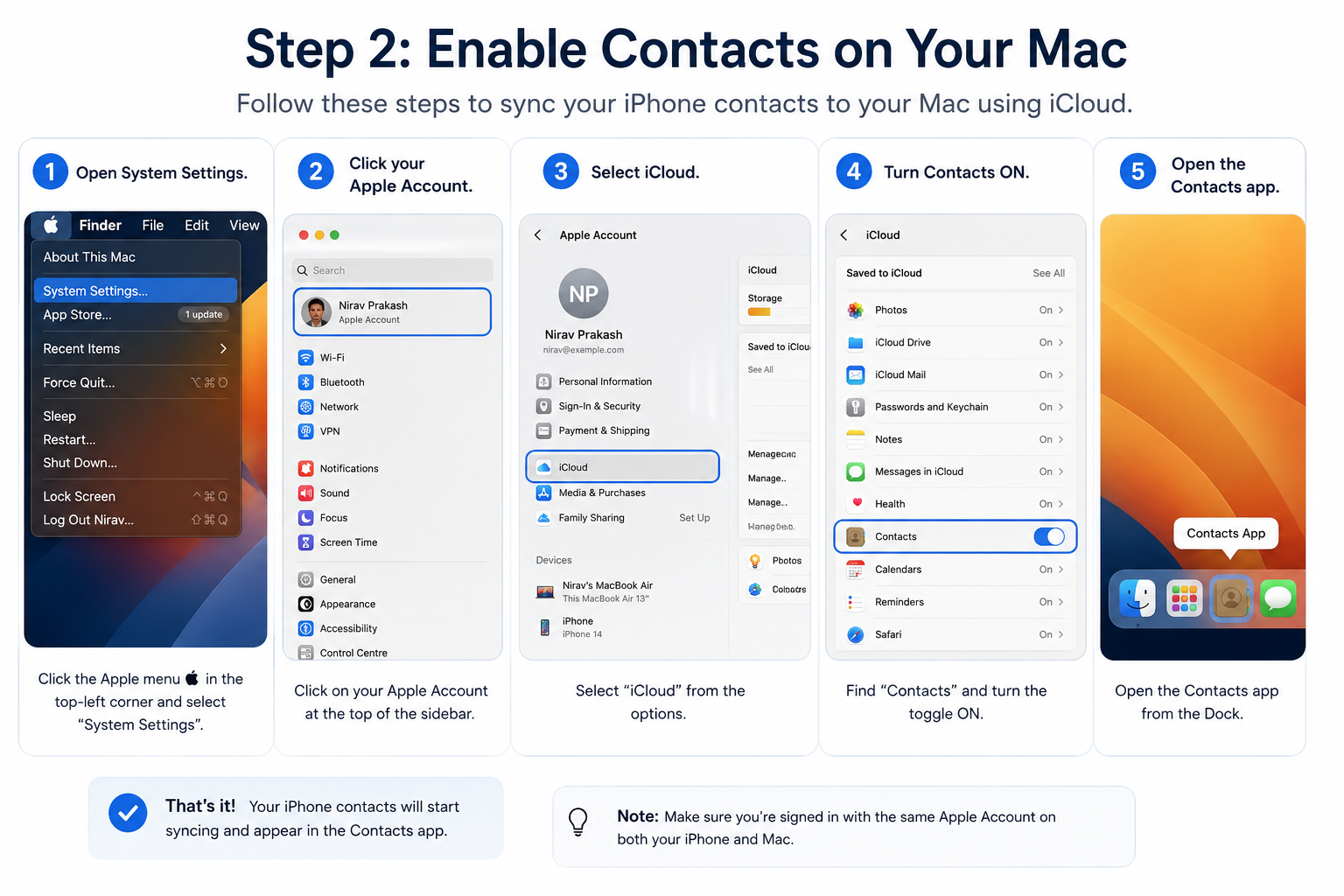
After a few moments, your iPhone contacts should automatically appear on your Mac.
Method 2: Sync Google Contacts to Your Mac
If your contacts are stored in your Google account instead of iCloud, you can sync them to your Mac easily.
- Open System Settings on your Mac.
- Click Internet Accounts.
- Add or select your Google account.
- Enable Contacts.
Your Google contacts will now appear in the Contacts app on your Mac.
Method 3: Sync Contacts Using Finder
If you prefer not to use iCloud, you can sync your contacts using a USB cable.
- Connect your iPhone to your Mac using a USB cable.
- Open Finder.
- Select your iPhone from the sidebar.
- Click the Info tab.
- Enable Sync Contacts.
- Click Apply.
This method is useful for users who prefer local syncing.
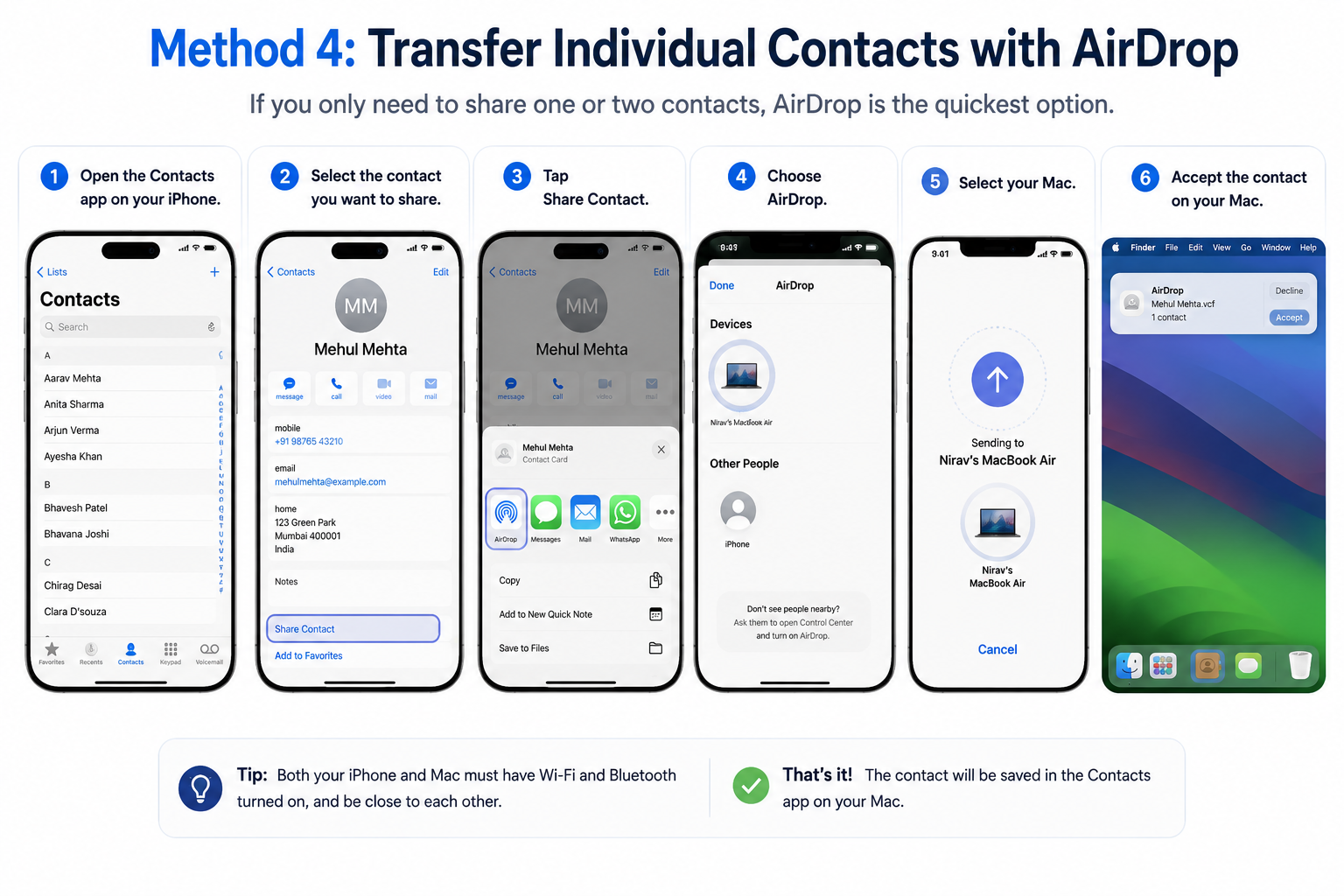
Method 4: Transfer Individual Contacts with AirDrop
If you only need to share one or two contacts, AirDrop is the quickest option.
- Open the Contacts app on your iPhone.
- Select the contact you want to share.
- Tap Share Contact.
- Choose AirDrop.
- Select your Mac and accept the contact.
Contacts Not Syncing? Try These Fixes
If your contacts don’t appear on your Mac after enabling syncing, try the following troubleshooting steps.
Make Sure You’re Using the Same Apple Account
Both your iPhone and Mac must be signed in with the same Apple Account for iCloud syncing to work.
Verify That iCloud Contacts Is Enabled
Double-check that the Contacts toggle is turned on in iCloud settings on both devices.
Check Your Internet Connection
iCloud sync requires an active internet connection on both your iPhone and Mac.
Refresh the Contacts App
Open the Contacts app on your iPhone and pull down on the contact list to manually refresh it.
Restart Both Devices
A simple restart often resolves temporary syncing issues.
Update iOS and macOS
Running the latest version of iOS and macOS helps ensure compatibility and fixes known syncing bugs.
How Long Does Contact Syncing Take?
In most cases, contacts sync within a few seconds to a few minutes. If you’re syncing a large contact library for the first time, it may take slightly longer depending on your internet connection.
Can You Sync Contacts Without iCloud?
Yes. If you don’t want to use iCloud, you can sync contacts using:
- Google Contacts
- Microsoft Exchange
- Finder with a USB cable
- AirDrop for individual contacts
- Third-party contact management software
However, iCloud remains the simplest and most seamless option for Apple users.
Frequently Asked Questions
Why aren’t my iPhone contacts showing on my Mac?
This usually happens because:
- iCloud Contacts is disabled.
- You’re signed in with different Apple Accounts.
- Your contacts are stored in Google or another email account instead of iCloud.
- Your devices aren’t connected to the internet.
Will deleting a contact on my iPhone remove it from my Mac?
Yes. If both devices are syncing through iCloud, deleting a contact on one device removes it from all devices connected to the same Apple Account.
Can I sync contacts from my iPhone to multiple Macs?
Yes. Simply sign in to the same Apple Account on each Mac and enable iCloud Contacts.
Are my contacts backed up in iCloud?
Yes. When iCloud Contacts is enabled, your contacts are securely stored in iCloud and synchronized across all your Apple devices.
Final Thoughts
Syncing contacts from your iPhone to your Mac is a simple process that keeps your contact information consistent across your Apple devices. For most users, enabling iCloud Contacts is the quickest and most reliable solution. If you store your contacts in Google or prefer using a USB cable, Apple also provides flexible alternatives to suit different preferences.
By following the steps in this guide, you’ll always have access to your latest contacts, whether you’re working from your iPhone or your Mac.