
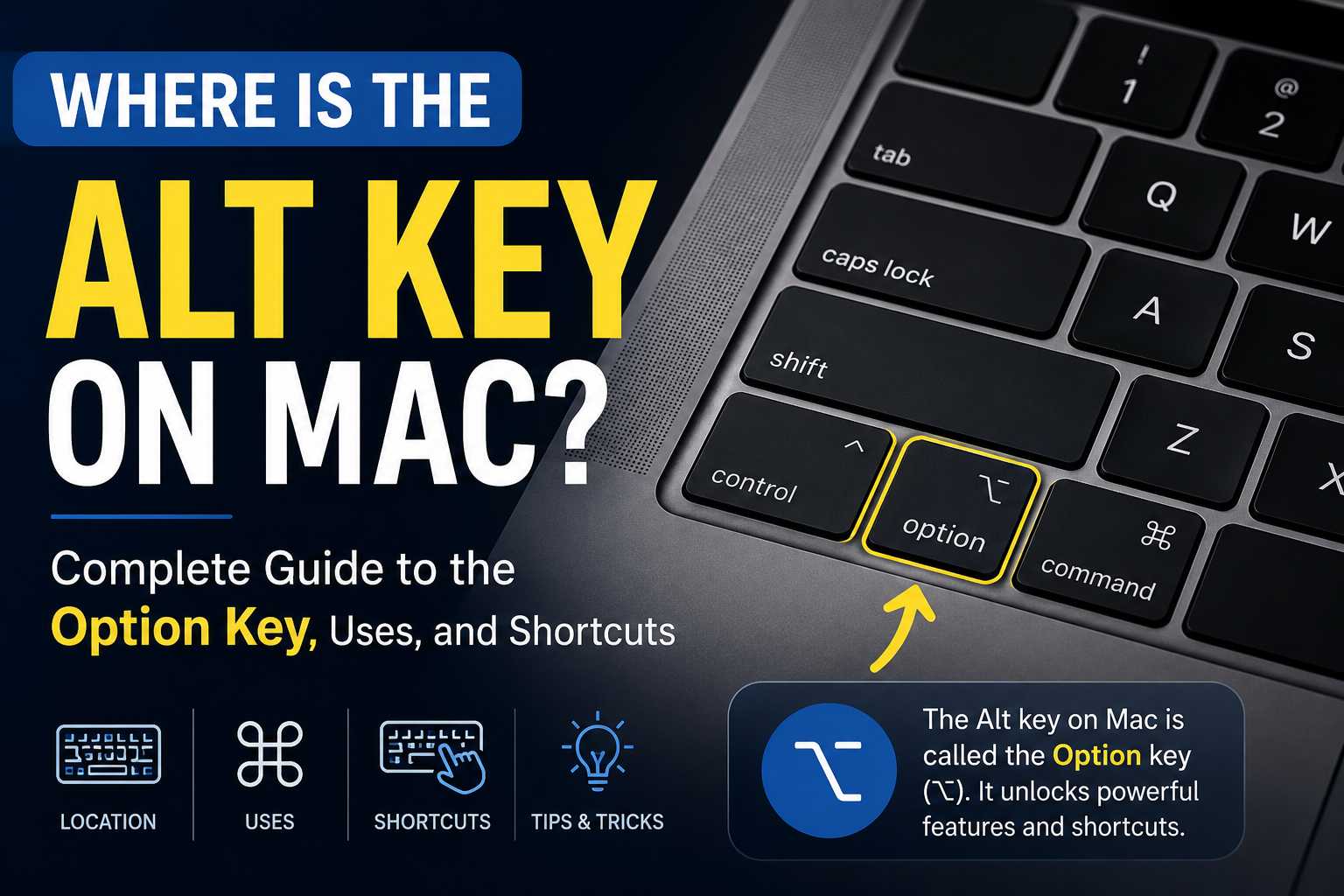
Switching from a Windows PC to a Mac can be exciting, but it often comes with a learning curve—especially when it comes to the keyboard. One of the most common questions new Mac users ask is, “Where is the Alt key on Mac?” If you’ve been searching for the Alt key and can’t find it, don’t worry. You’re not alone.
The reason is simple: Mac keyboards don’t have a key labeled “Alt.” Instead, Apple uses the Option (⌥) key, which performs the same role as the Alt key on Windows in most situations.
In this comprehensive guide, you’ll learn where the Alt key is located on a Mac, what it does, how it differs from Windows, useful keyboard shortcuts, hidden features, and answers to common questions. By the end of this article, you’ll be using the Option key like a pro.
What Is the Alt Key on a Mac?
The Alt key on a Mac is called the Option key (⌥). Although the name is different, its primary purpose is very similar to the Alt key found on Windows keyboards.
Apple chose the name Option because the key often provides additional options or alternative functions when used alone or combined with other keys.
For example, pressing the Option key while clicking a menu may reveal hidden settings. Holding it while typing certain keys can also produce special characters like €, ©, ™, or accented letters.
In short:
- Windows: Alt
- Mac: Option (⌥)
Most applications and software that refer to the “Alt” key on Windows usually expect you to use the Option key on macOS.
Where Is the Alt Key on a Mac Keyboard?
Finding the Alt key on a Mac is easy once you know what you’re looking for.
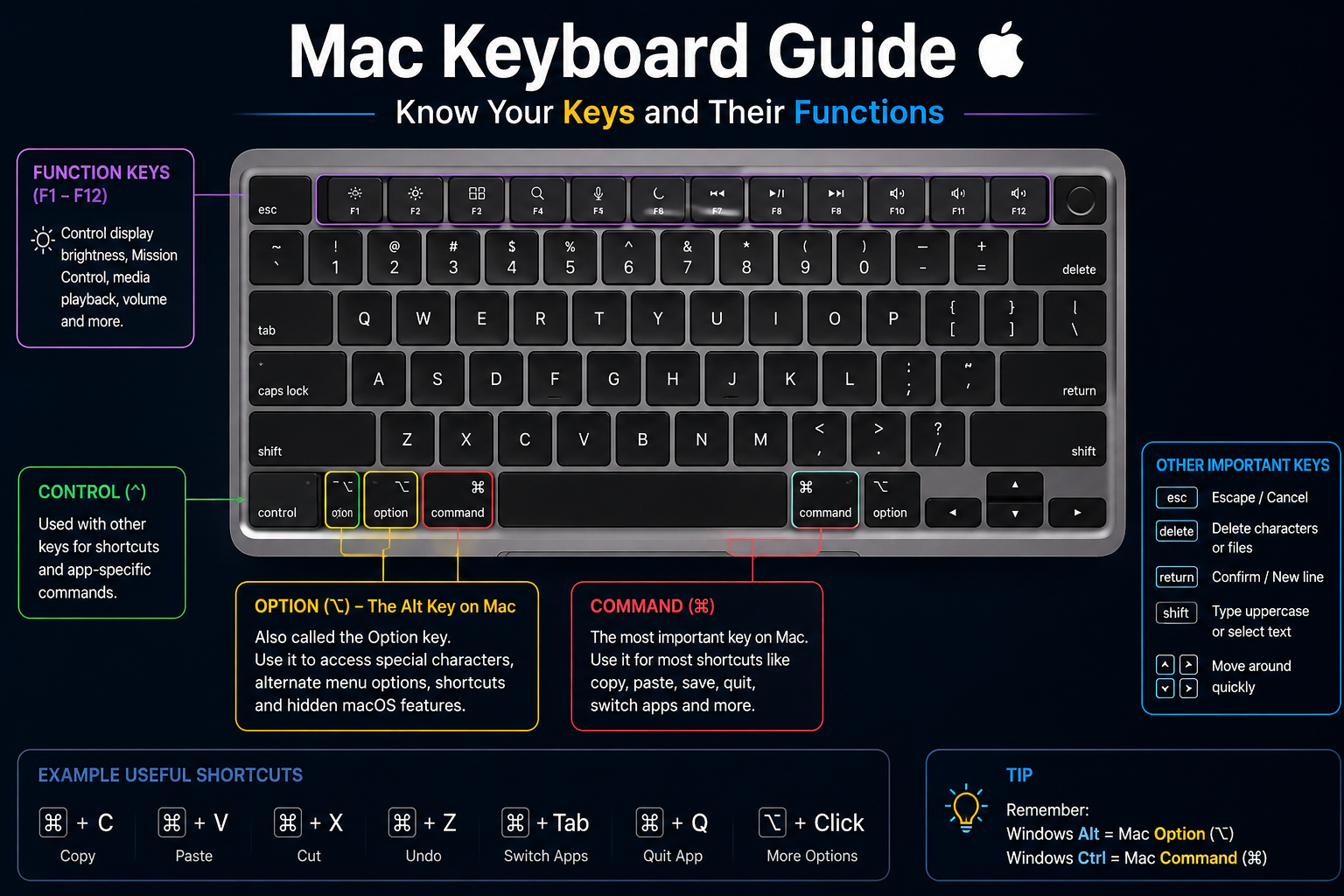
On almost every Mac keyboard, including MacBook Air, MacBook Pro, Magic Keyboard, and Apple Wireless Keyboard, the Option (⌥) key is located on both sides of the Space bar.
The layout usually looks like this:
Control (⌃) → Option (⌥) → Command (⌘) → Space Bar → Command (⌘) → Option (⌥) → Control (⌃)
Most users use the left Option key, although both keys perform the same function.
Whether you’re using:
- MacBook Air
- MacBook Pro
- iMac
- Mac mini with Magic Keyboard
- Apple external keyboard
the Option key remains in the same position.
Why Doesn’t Apple Call It the Alt Key?
Apple designed macOS differently from Windows. Instead of using the term “Alt,” Apple introduced the Option key because it unlocks alternate actions throughout the operating system.
For example, holding the Option key can:
- Show additional Wi-Fi information
- Display advanced Bluetooth options
- Reveal hidden menu items
- Create special keyboard characters
- Access startup and recovery options
Rather than simply acting as an alternate key, Apple wanted users to think of it as a way to access more options, which is why the name has remained unchanged for decades.
Is the Alt Key the Same as the Option Key?
Yes, in almost every case.
If a tutorial, software guide, or Windows shortcut mentions the Alt key, Mac users should usually press the Option (⌥) key instead.
Here’s a simple comparison:
| Windows Keyboard | Mac Keyboard |
|---|---|
| Alt | Option (⌥) |
| Ctrl | Control (⌃) |
| Windows Key | Command (⌘) |
| Backspace | Delete |
While the Option key is the Mac equivalent of Alt, not every Windows keyboard shortcut translates directly because macOS relies heavily on the Command (⌘) key for common shortcuts.
For example:
- Windows: Ctrl + C
- Mac: Command + C
Not:
- Option + C
This is one of the biggest adjustments for users switching to macOS.
What Does the Option Key Do on a Mac?
The Option key is much more powerful than many users realize. It acts as a modifier key, changing what happens when you press another key, click the mouse, or open a menu.
Some of its most common uses include:
Access Hidden Menu Options
Holding the Option key while clicking menu items often reveals advanced settings that aren’t visible otherwise.
For example:
- Option + Wi-Fi icon
- Option + Bluetooth icon
- Option + Volume icon
These shortcuts display detailed technical information useful for troubleshooting.
Create Special Characters
One of the most popular uses of the Option key is typing symbols that aren’t available on a standard keyboard.
Examples include:
| Shortcut | Character |
|---|---|
| Option + 2 | ™ |
| Option + G | © |
| Option + Shift + 2 | € |
| Option + 8 | • |
| Option + K | Apple logo shortcut in some apps (varies) |
This is especially useful for writers, designers, students, and business professionals.
Type Accented Letters
Need to type foreign-language characters?
The Option key makes it easy.
Examples:
- Option + E, then E → é
- Option + U, then U → ü
- Option + I, then O → ô
- Option + N, then N → ñ
These shortcuts are perfect for typing names, languages, and international content.
Duplicate Files Quickly
Hold the Option key while dragging a file in Finder.
Instead of moving it, macOS creates a duplicate.
This simple trick can save a lot of time.
Change System Behavior
The Option key also changes how certain applications work.
Examples include:
- Viewing additional startup disks
- Accessing Recovery Mode during startup
- Opening advanced settings
- Bypassing certain default behaviors
Most Useful Option (Alt) Keyboard Shortcuts on Mac
Here are some of the most useful keyboard shortcuts every Mac user should know.
| Shortcut | Action |
|---|---|
| Option + Delete | Delete the previous word |
| Option + Left Arrow | Move cursor one word left |
| Option + Right Arrow | Move cursor one word right |
| Option + Shift + Left | Select previous word |
| Option + Shift + Right | Select next word |
| Option + Click | Open advanced menu options |
| Option + Drag | Copy a file while dragging |
| Option + Esc | Display special character suggestions (context-dependent) |
Learning these shortcuts can significantly improve your productivity.
Hidden Features of the Option Key
Many experienced Mac users rely on the Option key daily because it unlocks hidden functionality throughout macOS.
Some lesser-known features include:
- Viewing detailed Wi-Fi diagnostics
- Accessing additional Bluetooth information
- Opening the Library folder from Finder
- Restarting apps with additional options
- Accessing startup manager during boot
- Displaying more information in system menus
These advanced features are one reason the Option key is considered one of the most useful keys on a Mac keyboard.
Windows Alt Key vs Mac Option Key
Although the two keys are similar, there are some important differences.
| Feature | Windows Alt | Mac Option |
|---|---|---|
| Opens menu shortcuts | Yes | Limited |
| Types special characters | Yes | Yes |
| Keyboard modifier | Yes | Yes |
| Used in common shortcuts | Frequently | Frequently |
| Works with Command key | No | Yes |
Windows relies more heavily on the Alt key for navigating menus, while macOS combines the Option key with the Command key for many advanced keyboard shortcuts.
Tips for New Mac Users
If you’ve recently switched from Windows, these tips will help you adjust more quickly:
- Think of Option = Alt.
- Think of Command = Ctrl for most shortcuts.
- Learn the keyboard symbols: ⌘, ⌥, ⌃, and ⇧.
- Practice common shortcuts every day until they become second nature.
- Explore menus while holding the Option key—you’ll often discover hidden features.
Frequently Asked Questions
Does Mac have an Alt key?
No. Macs do not have a key labeled “Alt.” Instead, Apple uses the Option (⌥) key, which performs the same role in most situations.
Where is the Alt key on a MacBook?
The Alt key, labeled as Option (⌥), is located next to the Command (⌘) key on both sides of the Space bar.
Is the Option key the same as Alt?
Yes. In most applications, the Option key is the Mac equivalent of the Windows Alt key.
Can I use Windows Alt shortcuts on a Mac?
Some shortcuts work using the Option key, but many Windows shortcuts use the Command key instead. For example, Ctrl + C on Windows becomes Command + C on macOS.
Why are there two Option keys?
Apple includes one Option key on each side of the keyboard so users can comfortably use keyboard shortcuts with either hand.
What is the Option key used for?
The Option key is used to access alternate commands, type special characters, create accented letters, duplicate files, reveal hidden menu options, and perform many advanced keyboard shortcuts.
Final Thoughts
If you’ve been wondering, “Where is the Alt key on Mac?”, the answer is simple: it’s the Option (⌥) key.
While Apple uses a different name, the Option key serves the same purpose as the Windows Alt key in most situations. Beyond basic shortcuts, it also unlocks advanced system features, special characters, hidden menu options, and productivity-enhancing functions that many users overlook.
Whether you’re a new Mac owner or transitioning from Windows, taking the time to learn the Option key will make navigating macOS much easier. Once you become familiar with its capabilities, you’ll discover that it’s one of the most versatile keys on your Mac keyboard.