
Reading long articles, research papers, online books, or emails every day can become tiring. Spending hours looking at a computer screen may also lead to eye strain and reduce productivity. This is why many people now use text-to-speech tools that can read online content aloud.
One of the most popular options is the Read Aloud Chrome Extension. This free browser extension allows you to listen to web pages instead of reading them yourself. Whether you are a student, teacher, professional, writer, or someone with reading difficulties, the extension can make browsing more convenient and enjoyable.
In this guide, you’ll learn everything about the Read Aloud Chrome Extension, including how it works, its features, benefits, installation process, and tips for getting the best experience.
What Is Read Aloud Chrome Extension?
The Read Aloud Chrome Extension is a text-to-speech (TTS) extension for the Google Chrome browser. It converts written text on supported web pages into spoken audio, allowing users to listen instead of reading.
Once installed, the extension can read blogs, news articles, online documents, educational content, emails, and many other types of web pages.
Instead of spending time reading long paragraphs, you simply click the extension icon and let it read the content aloud while you follow along or focus on other tasks.
Because of its simple design and ease of use, the Read Aloud Chrome Extension has become a popular productivity tool for millions of users worldwide.
Why Do People Use Read Aloud Chrome Extension?
Everyone has different reasons for using text-to-speech software. Some people want to reduce eye strain, while others prefer listening because it helps them remember information better.
Here are some common reasons people install the Read Aloud Chrome Extension:
- Listen to articles while working.
- Read study materials more comfortably.
- Reduce eye fatigue from long screen sessions.
- Improve accessibility for users with vision impairments.
- Proofread written content by listening to it.
- Learn better through audio.
- Save time by multitasking.
Whether you’re studying for exams or catching up on the latest news, listening can often be more relaxing than reading.
How Does Read Aloud Chrome Extension Work?
The Read Aloud Chrome Extension uses Text-to-Speech (TTS) technology to convert written text into spoken words.
When you open a webpage and activate the extension, it scans the readable content on the page. The extension then processes the text using an available speech engine and begins reading it aloud through your computer speakers or headphones.
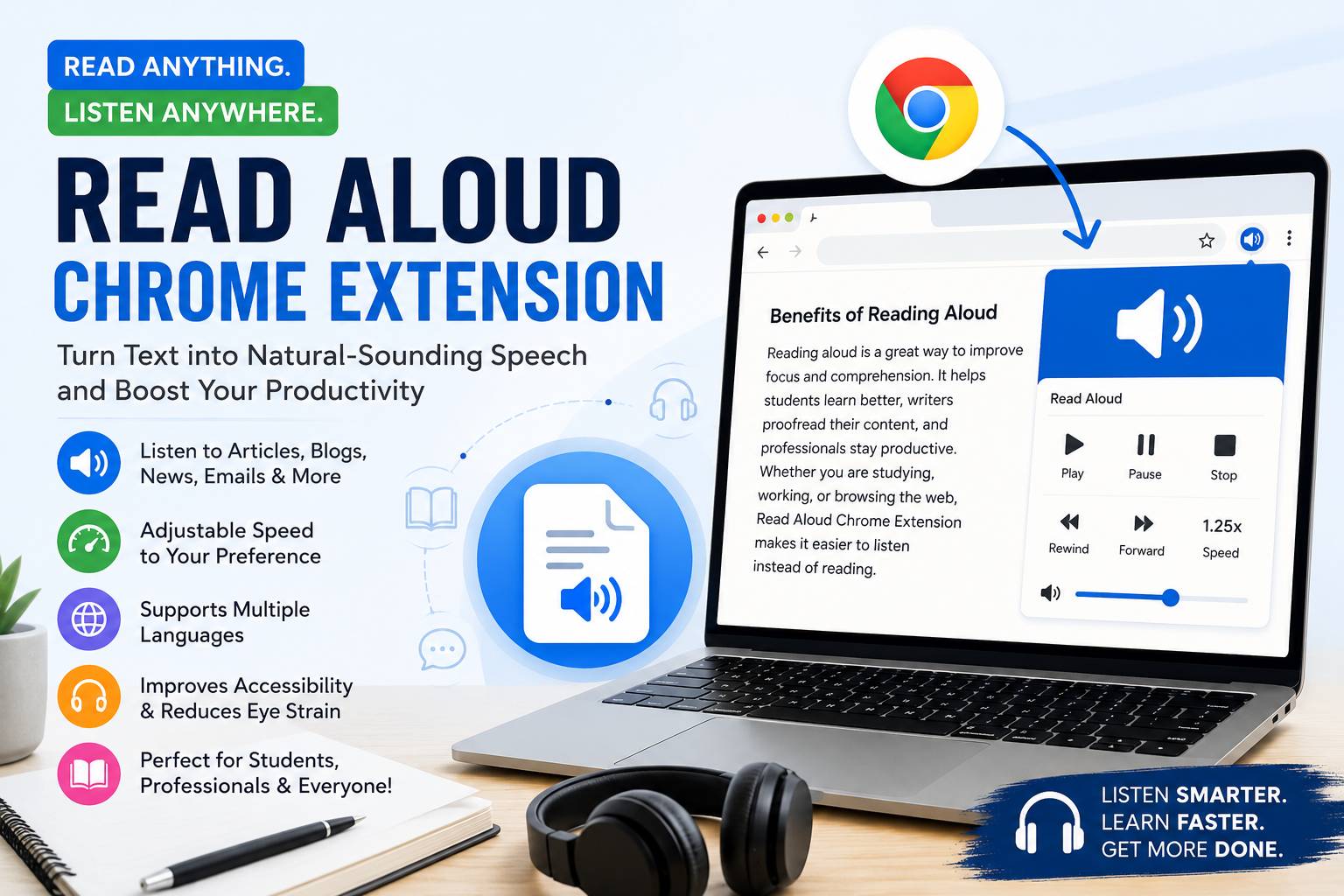
Most users can control playback using simple buttons, including:
- Play
- Pause
- Resume
- Stop
- Skip forward
- Skip backward
You can also adjust the reading speed to match your listening preference. Some speech engines even provide natural-sounding voices that make listening more enjoyable.
Key Features of Read Aloud Chrome Extension
The Read Aloud Chrome Extension includes several features that improve the online reading experience.
Reads Web Pages Aloud
The extension can read most web pages automatically, including blogs, news websites, educational articles, and online documents.
Multiple Voice Options
Users can choose from different computer-generated voices depending on their operating system and available speech services.
Some voices sound more natural than others, giving users greater flexibility.
Adjustable Reading Speed
Not everyone listens at the same pace. The extension allows you to increase or decrease the playback speed according to your comfort level.
Multiple Language Support
The extension supports many languages, making it useful for users around the world.
This is especially helpful for language learners who want to improve pronunciation and listening skills.
Easy Playback Controls
Simple playback controls allow you to pause, continue, rewind, or stop reading at any time.
Clean and User-Friendly Interface
The extension has a simple interface that makes it easy for beginners to start using immediately without a complicated setup process.
Benefits of Using Read Aloud Chrome Extension
Installing the Read Aloud Chrome Extension offers several advantages.
Reduces Eye Strain
Reading from a screen for several hours can make your eyes tired. Listening to content instead gives your eyes a chance to rest.
Improves Productivity
Instead of sitting and reading every word, you can listen while organizing files, taking notes, or completing other simple tasks.
Better Accessibility
People with visual impairments, dyslexia, or other reading challenges can access online information more comfortably.
Helps Students Learn
Students can listen to online textbooks, notes, and research articles while following the written text. Listening and reading together often improves understanding and memory.
Excellent for Writers
Many writers use text-to-speech tools to proofread their work. Hearing your writing aloud makes it easier to identify grammar mistakes, missing words, or awkward sentences.
Supports Multitasking
You can continue listening while doing household chores, organizing your workspace, or preparing for meetings.
How to Install Read Aloud Chrome Extension
Installing the Read Aloud Chrome Extension only takes a few minutes.
First, open the Google Chrome browser on your computer.
Next, visit the Chrome Web Store and search for Read Aloud Chrome Extension.
Open the extension page and click Add to Chrome.
Confirm the installation when prompted.
Once installed, pin the extension to your browser toolbar so it is always easy to access.
After installation, you can start using it on supported web pages immediately.
How to Use Read Aloud Chrome Extension
Using the extension is simple, even for first-time users.
Open the webpage you want to read.
Click the Read Aloud Chrome Extension icon from your Chrome toolbar.
Press the Play button.
The extension will begin reading the page aloud.
If needed, you can pause the audio, change the reading speed, skip sections, or stop playback at any time.
Most users learn how to use the extension within a few minutes.
Who Should Use Read Aloud Chrome Extension?
The Read Aloud Chrome Extension is useful for many different types of users.
It is especially beneficial for:
- Students
- Teachers
- Researchers
- Writers
- Bloggers
- Office professionals
- Language learners
- People with dyslexia
- Users with visual impairments
- Anyone who prefers listening over reading
Because of its flexibility, it can fit into both personal and professional workflows.
Common Problems and Their Solutions
Although the extension usually works well, users may occasionally encounter technical issues.
No Audio
Check that your computer volume is turned on and the correct audio device is selected.
Extension Not Working
Restart Google Chrome and make sure the browser is updated to the latest version.
Some Web Pages Cannot Be Read
Certain websites have complex layouts or restrictions that may prevent text-to-speech tools from reading all content correctly.
Slow Performance
Close unnecessary browser tabs and applications to improve browser performance.
Most problems can be solved within a few minutes without reinstalling the extension.
Tips for the Best Experience
To enjoy the best performance from the Read Aloud Chrome Extension, follow these simple tips.
Keep Google Chrome updated to the latest version.
Choose a voice that sounds comfortable to you.
Adjust the reading speed until it feels natural.
Use headphones if you’re in a noisy environment.
Pin the extension to your toolbar for quick access.
Use it regularly for studying, proofreading, or listening to long articles.
These small adjustments can greatly improve your overall experience.
Frequently Asked Questions
Is Read Aloud Chrome Extension free?
Yes. The extension is free to install and use. Some optional voice services may offer premium voices with additional features.
Does it work on every website?
The extension works on many websites, although some pages with complex layouts or restricted content may not be fully supported.
Can I change the voice?
Yes. You can select different voices through the extension settings if multiple voices are available on your device.
Can I adjust the reading speed?
Yes. The extension allows you to increase or decrease the playback speed according to your preference.
Is Read Aloud Chrome Extension safe?
The extension is widely used for text-to-speech functionality. As with any browser extension, it is recommended to install it from trusted sources and review the permissions before installation.
Final Thoughts
The Read Aloud Chrome Extension is one of the easiest ways to turn written web content into spoken audio. Whether you want to reduce eye strain, improve productivity, study more effectively, or simply enjoy listening instead of reading, this extension offers a practical solution.
Its simple interface, adjustable playback controls, support for multiple languages, and accessibility features make it useful for students, professionals, educators, writers, and everyday internet users alike.
If you regularly read articles, blogs, online books, research papers, or emails, the Read Aloud Chrome Extension is a helpful tool that can make your browsing experience more comfortable, efficient, and enjoyable.