
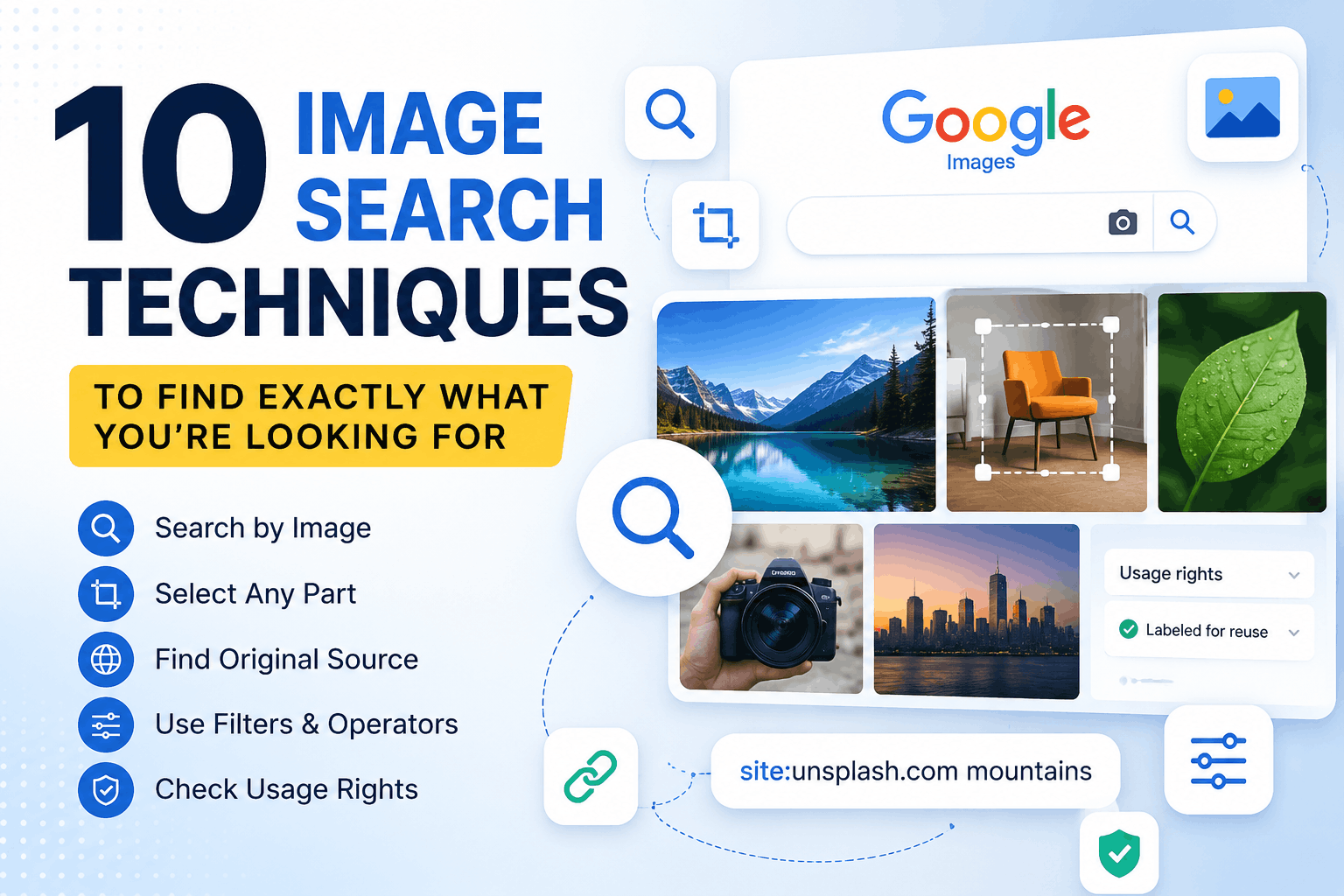
Finding the right image online sounds easy. You type a few words into Google, open Google Images, and start scrolling.
But if you have ever searched for a specific photo, product, person, place, wallpaper, logo, or old image, you probably know how frustrating it can become. You may get thousands of results, but none of them are exactly what you wanted.
The good news is that you do not have to rely on simple searches.
There are several image search techniques that can help you narrow down results, discover similar images, find the original source of a picture, and even search using an image instead of words.
Some of these tricks are surprisingly useful, and many regular internet users never try them.
Here are 10 techniques worth knowing.
1. Use More Specific Search Words
One of the easiest ways to improve image results is to stop using very broad searches.
For example, searching for:
“car”
can return millions of unrelated images.
Instead, try something more specific:
“red vintage Porsche 911 front view”
or:
“red Porsche 911 night city wallpaper”
The more useful details you provide, the easier it becomes for Google to understand what you are looking for.
You can include details such as:
- Color
- Brand
- Location
- Object type
- Style
- Time period
- Orientation
- Image purpose
- Background
For example, instead of searching for “mountain”, try:
“snow mountain sunrise wallpaper 4k”
This simple change can dramatically improve your results.
2. Search Using an Image Instead of Words
What if you have a picture but do not know what it shows?
This is where Google Lens becomes extremely useful.
You can upload an image to Google and search using the picture itself. Google can return information about objects in the image, similar images, and websites where the same or similar image appears.
For example, imagine someone sends you a picture of a pair of shoes.
You do not know the brand or model.
Instead of trying to describe the shoes, upload the photo to Google Lens.
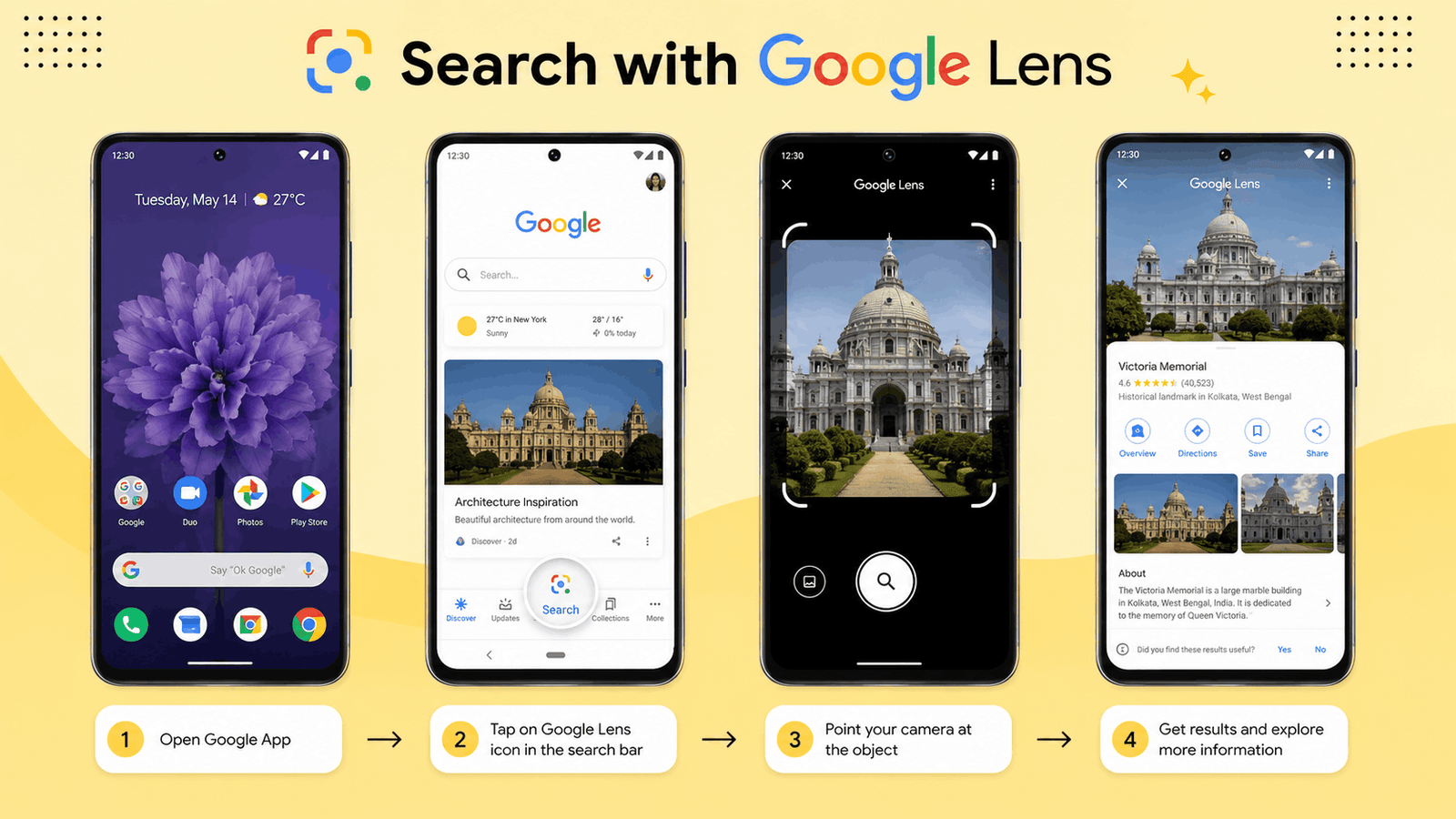
Google may identify the product or show visually similar products.
You can also use an image from a website. On supported browsers, right-clicking an image and choosing Search with Google Lens can start the search.
This is one of the most useful reverse image search methods for everyday users.
3. Search Only a Small Part of an Image
Here is a trick that many people overlook.
You do not always have to search an entire image.
Suppose you have a photograph showing a person wearing an unusual jacket. You want to find the jacket, but the rest of the photo is irrelevant.
With Google Lens, you can select a specific area of the image and search that part.
On mobile devices, you can adjust the selection box around the object you want to investigate. Google recommends selecting a smaller area when you want more specific results.
This can be useful for finding:
- Clothing
- Shoes
- Furniture
- Gadgets
- Plants
- Cars
- Buildings
- Logos
- Products
For example, instead of searching an entire photograph of a room, select only the chair.
The results can then focus more heavily on that particular object.
SEE ALSO: Is NetMirror Safe? The Hidden Cybersecurity, Privacy, and Legal Risks You Should Know
4. Put Exact Phrases Inside Quotation Marks
Quotation marks are not only useful for normal Google searches. They can also help when you are looking for images connected to a very specific phrase.
For example, instead of:
famous Mumbai street photography
try:
“Mumbai street photography”
This tells Google that you are interested in the exact phrase rather than separate words appearing anywhere in the page.
You can also combine an exact phrase with other terms:
“Mumbai street photography” black and white
This technique can be especially useful when looking for:
- Famous photographs
- Posters
- Quotes
- Movie images
- Book covers
- Event photographs
- Specific locations
Google supports search operators and filters for narrowing search results, although the exact tools available can vary depending on the search and device.
5. Use site: to Search Images From One Website
This is one of the most useful Google search tricks that many people never use.
The site: operator lets you limit your search to a particular website or domain.
For example:
site.org Eiffel Tower
Or:
site.com mountain
You can then switch to the Images section to explore image results related to that website.
This is useful when you already know where you want to find an image.
For example, if you want images from a particular news website, museum, organization, or image library, you can combine the website with your search terms.
You can also combine operators with specific phrases:
site.com “New York”
This is a simple but powerful way to reduce irrelevant results.
6. Filter Images by Size, Color, and Type
If you are searching for a particular kind of image, do not just scroll through hundreds of results.
Use Google’s image filters.
Depending on the search and device, Google Images can provide filters such as:
- Size
- Color
- Type
- Time
- Usage rights
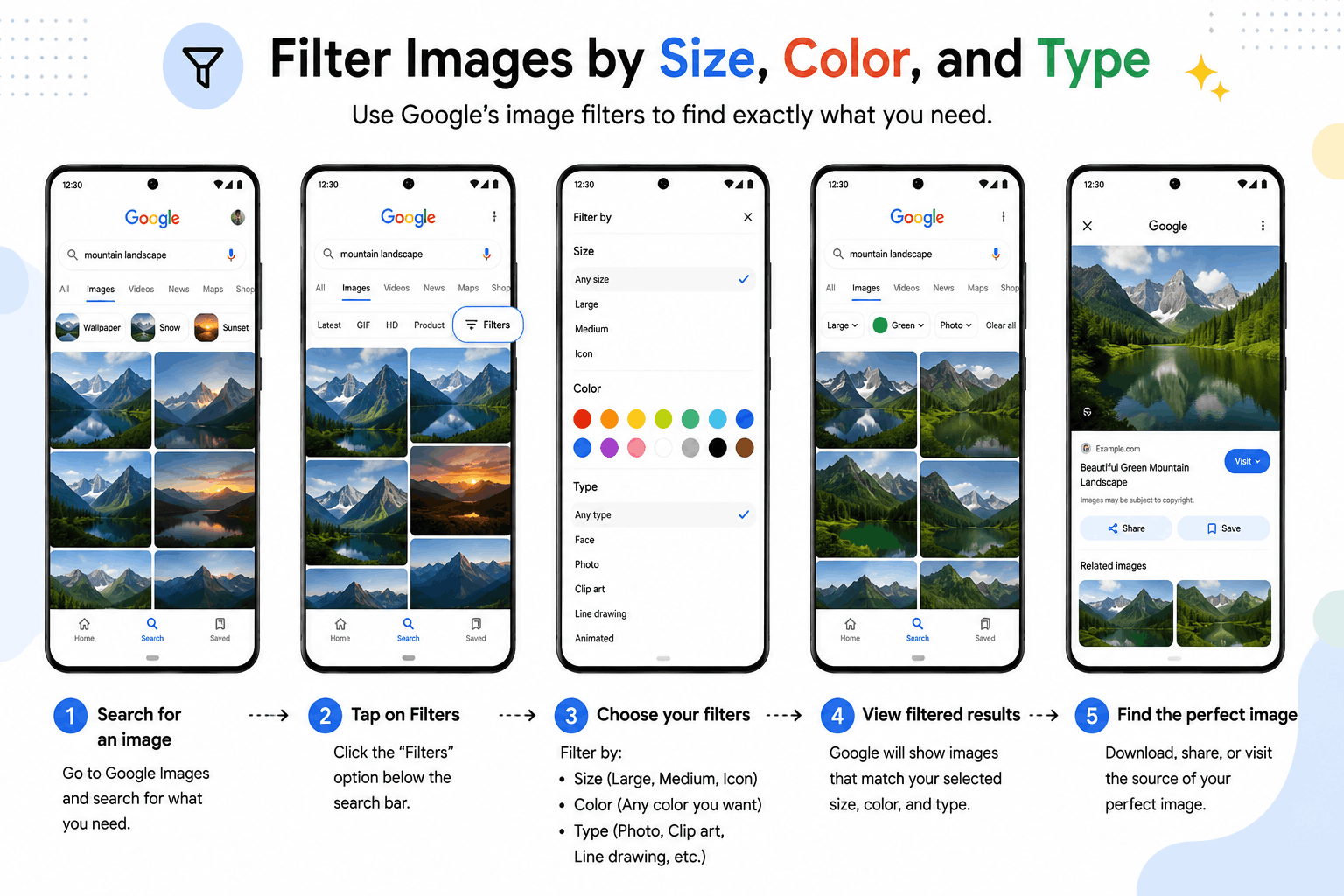
For example, you can look for large images if you need something suitable for a desktop wallpaper or presentation.
You can also search for:
- Black-and-white images
- Transparent images
- Animated GIFs
- Line drawings
- Clip art
Google confirms that image search tools can include filters for size, color, type, time, and usage rights.
This can save a lot of time when you already know what kind of image you need.
SEE ALSO: 12 Hidden Gmail Features You Should Start Using Today
7. Look for the Original Source of an Image
Have you ever seen the same picture posted on five different websites?
It can be difficult to know where it originally came from.
A reverse image search can help.
Upload the image to Google Lens and look through the results for websites containing the same or similar image. Google says image searches can return websites where the image or a similar image appears.
This can help you investigate:
- Where a photograph first appeared
- Who published an image
- Whether an image has been reused
- Whether a social media picture appears elsewhere
- Whether a product photograph belongs to a particular website
Keep in mind that finding an image on a website does not automatically prove that the website is the original creator. You may need to compare dates, credits, and other information.
8. Search for Images You Can Legally Reuse
Finding an image is not the same as having permission to use it.
This is particularly important if you are creating a blog, YouTube video, presentation, advertisement, or social media post.
Google Images provides a Usage rights filter that can help you find images with available license information. However, Google recommends checking the actual license details before using an image because the filter is based on information supplied by websites or image providers.
For example, an image may have a Creative Commons license that requires attribution.
Another image may have a license that allows personal use but not commercial use.
So do not assume:
“It appeared on Google, so I can use it.”
That is not how image copyright works.
Always check the license and the original website before reusing an image.
9. Add Words After You Search With an Image
Reverse image search does not have to be a one-step process.
This is another technique that is easy to miss.
After uploading an image, you can add words to your search to make the results more specific. Google specifically supports adding a description to an image search using the “Add to your search” option.
For example, suppose you upload a picture of a chair.
Your first search may show similar chairs.
Now add:
wooden chair
Then try:
wooden chair modern
Or:
wooden chair price
This lets you combine visual information with normal search terms.
It is particularly useful when the image search understands the object but does not know exactly what information you want.
10. Search for the Object, Not Just the Picture
This is perhaps the most interesting way to use modern image search.
You do not always need to search for the image itself. You can use a picture to discover information about what is inside it.
For example, you could photograph:
- A plant you cannot identify
- A landmark you do not recognize
- A piece of furniture
- A clothing item
- A car
- A gadget
- A painting
- An animal
Google Lens can analyze the image and provide relevant search results. On mobile, you can also select a particular area of an image and refine the search with additional keywords.
This turns image search into more than a tool for finding photographs.
It becomes a way to search for things you cannot easily describe.
Bonus: Try Searching From an Image URL
You do not always need to download an image before searching for it.
If an image is already available on a website, you can copy its image address and use it for a Google image search.
On a computer, Google supports using an image URL through the image-search interface.
This can be useful when:
- You found an image online
- You want to find similar versions
- You want to investigate its source
- You do not want to download the image first
It is a small trick, but it can make reverse image searching much faster.
A Simple Example of Better Image Searching
Let’s say you want a picture of a modern Mumbai skyline for a wallpaper.
A basic search would be:
Mumbai skyline
You will get a huge number of results.
Now improve the search:
Mumbai skyline night 4K wallpaper
You can then narrow it further using image filters.
If you find an interesting image but want something similar, use Google Lens.
If you only like one building in the picture, select that part of the image.
If you want a reusable image, check the Usage rights information.
Instead of spending 20 minutes scrolling, you can often reach a useful result much faster.
Why These Image Search Techniques Matter
Most people use image search in the simplest possible way: type a few words and scroll.
That works when you are looking for something general.
But modern image search can do much more.
You can search using:
- Words
- Images
- Image URLs
- Specific areas of images
- Exact phrases
- Website domains
- Filters
- Additional keywords
The biggest advantage is that you can combine these methods.
For example, you can upload an image, select one object, and then add a keyword to narrow the results. Google Lens supports this type of visual search and refinement.
Once you get used to these methods, finding a particular image becomes much less frustrating.
Final Thoughts
You do not need to be a tech expert to get better at image searching.
A few simple habits can make a huge difference. Be more specific with your search words, use filters when appropriate, try reverse image search when you already have a picture, and remember that you can search only a small part of an image.
Most importantly, do not forget about image rights. An image being easy to find does not mean it is free to reuse. Always check the license information before using someone else’s work.
The next time you cannot find the exact picture you want, do not just keep scrolling.
Change the way you search.
SEE ALSO: How to Check if Your Email Has Been in a Data Breach