
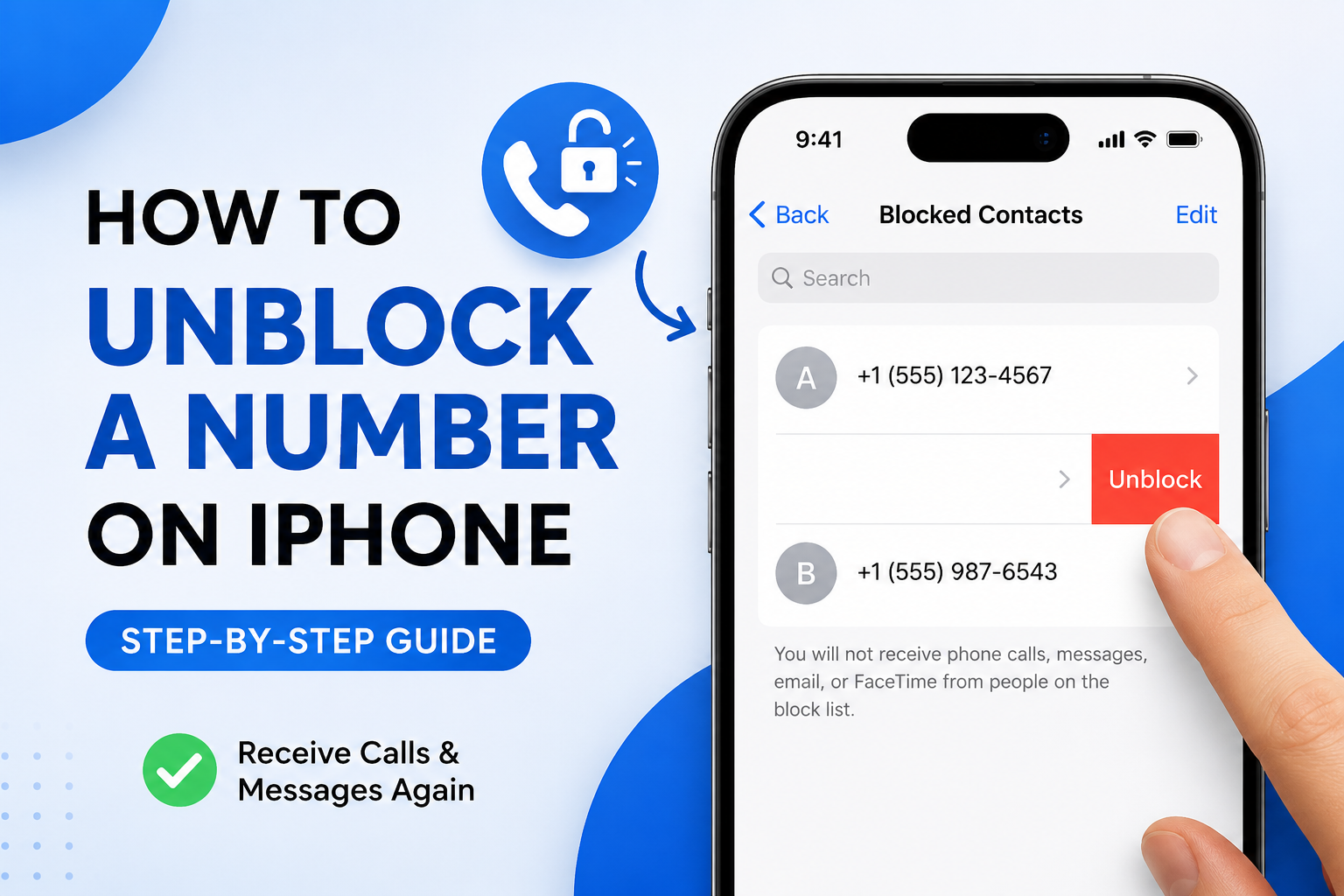
Did you block a phone number on your iPhone and now want to receive calls or messages from that person again?
You can easily unblock the number from your iPhone. The exact steps depend on which version of iOS you are using, and this is especially important because Apple changed where blocked contacts are managed in iOS 26.
In this guide, you will learn how to unblock a number on iPhone, where to find your blocked contacts, what happens after you unblock someone, and what to check if you still cannot receive their calls or messages.
How to Unblock a Number on iPhone
If your iPhone is running iOS 26, Apple has moved blocked contacts into a central location.
Steps to unblock a number on iOS 26
- Open the Settings app on your iPhone.
- Tap Privacy & Security.
- Tap Blocked Contacts.
- Find the phone number or contact you want to unblock.
- Tap Edit.
- Tap the delete/minus button next to the contact.
- Tap Unblock.
The number will then be removed from your blocked contacts list.
Apple’s current instructions confirm that iOS 26 uses Settings → Privacy & Security → Blocked Contacts as the central place to manage blocked contacts.
How to Unblock a Contact on Older iPhone Versions
If your iPhone is running an older version of iOS, you may not see Blocked Contacts under Privacy & Security.
On older versions, the usual path is:
Settings → Apps → Phone → Blocked Contacts
From there:
- Open Settings.
- Tap Apps.
- Tap Phone.
- Select Blocked Contacts.
- Find the person or number you want to unblock.
- Tap Edit.
- Remove the number from the blocked list.
- Tap Unblock if prompted.
Older versions of iOS placed blocked contacts inside individual apps such as Phone, Messages, FaceTime and Mail.
Why are the instructions different?
Apple changed the way blocked contacts are managed with iOS 26.
Instead of having separate blocked-contact lists spread across different communication apps, iOS 26 provides a centralized blocked list. This means you can manage blocked phone numbers, contacts and other blocked communication details from one location.
So, if you search for “blocked contacts” and cannot find the option where an older guide says it should be, your iPhone may simply be running a newer version of iOS.
How to Unblock Someone from the Phone App
You may also be able to manage the caller directly from the Phone app.
- Open the Phone app.
- Go to Recents.
- Find the number or contact.
- Tap the information button next to the call.
- Scroll through the available options.
- If the number is blocked, look for the option to Unblock the caller.
However, if you cannot find an unblock option there, don’t worry. The safest method on iOS 26 is to use:
Settings → Privacy & Security → Blocked Contacts
Apple’s current support documentation identifies the centralized blocked-contact list as the main place to manage blocked contacts in iOS 26.
How to Check if a Number Is Blocked on Your iPhone
If you are not sure whether you blocked someone, checking the blocked list is the easiest way to find out.
On iOS 26
Go to:
Settings → Privacy & Security → Blocked Contacts
Look through the list for the person’s name or phone number.
If you see the contact there, the number is blocked.
If you do not see the number, it is not currently included in your iPhone’s blocked-contact list.
What Happens When You Unblock a Number?
Unblocking a number allows that person to contact you again through Apple’s supported communication services.
For example, after you unblock someone, new calls and messages from that person can reach you normally, subject to your other iPhone settings.
There is one important thing to remember:
Unblocking someone does not normally recover messages they sent while they were blocked.
Apple states that messages sent while a contact is blocked are not delivered to you. Therefore, you should not expect old blocked messages to suddenly appear after you unblock the person.
Will the Person Know That You Unblocked Them?
No notification is sent to the person simply because you unblock them.
They may eventually realize that they can contact you again if their calls or messages start reaching you, but your iPhone does not send them a message saying that you removed the block.
Apple also states that people do not receive a notification when their calls or messages are blocked.
What Happens to Calls From a Blocked Number?
When someone is blocked, their calls do not notify you normally. Apple says a blocked caller can still leave a voicemail, but you do not receive a notification about it.
After you unblock the number, future calls can come through again.
This is different from recovering an old call. Unblocking the person does not recreate missed calls that occurred while the number was blocked.
What Happens to Messages From a Blocked Number?
Blocked messages are not delivered to you.
If the person sent you texts while their number was blocked, removing the block later does not normally make those old messages appear in your conversation.
New messages sent after you unblock the person can be delivered normally.
Can You Unblock a Number Without Saving It as a Contact?
Yes.
A blocked entry does not have to be a saved contact in your address book. Apple allows phone numbers and other communication details to be managed through the blocked list.
This is useful if you blocked a number after receiving an unwanted call but never saved the person in Contacts.
What If You Unblocked the Number but Still Cannot Receive Calls?
This is one of the most common points of confusion.
If the number is no longer blocked but the person still cannot reach you, another iPhone feature may be affecting the call.
1. Check Focus mode
A Focus mode can change how incoming calls and notifications are handled.
Go to:
Settings → Focus
Check whether a Focus mode is currently active and whether it is affecting calls from that person.
2. Check unknown-call settings
Your iPhone can silence or screen calls from unknown numbers. Apple provides call-screening and call-silencing options separately from blocking.
If the person is calling from a number that your iPhone considers unknown, check your Phone settings for call-screening or silence options.
3. Check third-party call-blocking apps
If you have installed a spam-filtering or call-blocking app, that app may have its own blocked list.
Unblocking someone in Apple’s blocked contacts list does not necessarily change the settings inside a third-party app.
Apple specifically notes that third-party apps manage blocking separately.
4. Check whether the correct number is blocked
A contact can have more than one phone number or communication address.
For example, you may have blocked one number while the person is now calling from another number.
Open the person’s contact card and check that you are looking at the correct phone number.
What If You Cannot Find “Blocked Contacts” on Your iPhone?
Don’t assume that something is wrong with your iPhone.
The location depends on your iOS version.
If you have iOS 26
Try:
Settings → Privacy & Security → Blocked Contacts
If you have an older version of iOS
Try:
Settings → Apps → Phone → Blocked Contacts
You can check your iOS version by going to:
Settings → General → About
Apple recommends checking the iOS version when following instructions because the location of communication settings can change between software versions.
How to Tell Which iOS Version You Have
If you are following an online guide and the menus look different, check your software version first.
- Open Settings.
- Tap General.
- Tap About.
- Look for iOS Version.
Once you know your version, you can follow the instructions that match your iPhone.
This small step can save you from searching through Settings for an option that has moved.
Does Unblocking Work Across Apple Devices?
Apple’s blocking system is designed to work across Apple devices signed in to the same Apple Account.
That means a blocked contact may be affected across your Apple devices rather than being limited to the one iPhone where you originally blocked the person.
This is particularly important if you use an iPhone together with an iPad or Mac.
What About WhatsApp, Instagram or Other Apps?
Unblocking a phone number from your iPhone does not automatically unblock the person inside every third-party app.
For example, if you blocked someone on WhatsApp, Instagram, Telegram or another messaging service, that app has its own blocking system.
You need to unblock the person inside that specific app.
Apple’s centralized blocking feature applies to Apple’s communication services, while third-party apps manage their own settings.
Can You Block the Number Again?
Yes.
If you change your mind later, you can block the number again from your iPhone.
On iOS 26, Apple provides the centralized blocked-contact list under:
Settings → Privacy & Security → Blocked Contacts
You can use this list to add or remove contacts as needed.
Quick Answer: How to Unblock a Number on iPhone
If you just want the shortest answer:
On iOS 26:
Settings → Privacy & Security → Blocked Contacts → Edit → Remove the number → Unblock
On older iOS versions:
Settings → Apps → Phone → Blocked Contacts → Edit → Remove the number
The exact menu can vary depending on your iOS version, so checking your software version is useful if you cannot find the setting.
Final Thoughts
Learning how to unblock a number on iPhone is easy once you know which iOS version you are using.
For iOS 26, the most important change is the new centralized location:
Settings → Privacy & Security → Blocked Contacts
From there, you can see the numbers and contacts you have blocked and remove someone from the list.
If the person still cannot call or message you after being unblocked, check other features such as Focus, unknown-call screening, and third-party call-blocking apps. The number may no longer be blocked, but another setting could still be preventing the communication from reaching you.