
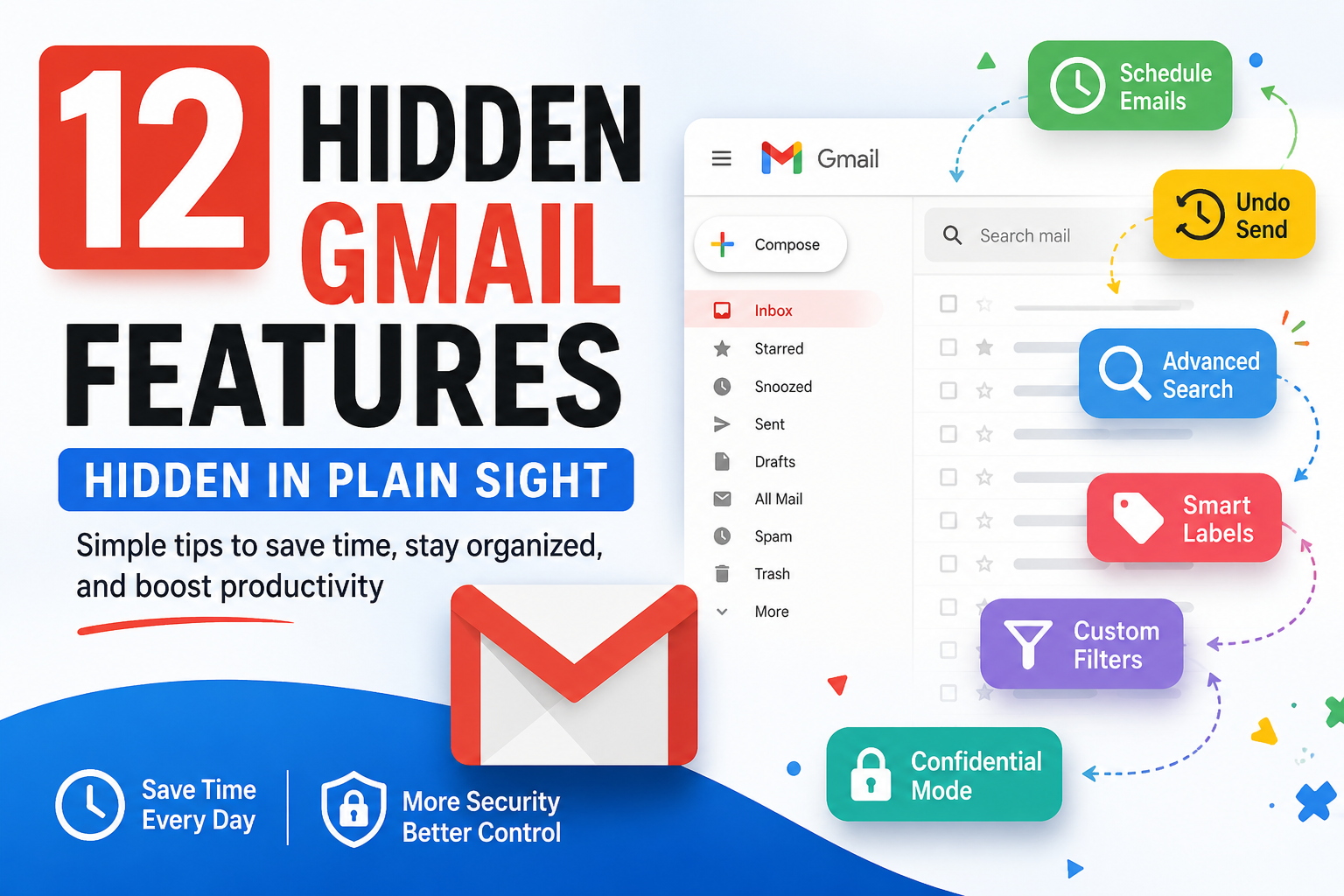
Most people use Gmail every day, but very few know about the powerful features hidden inside it.
For many users, Gmail is simply a place to send and receive emails. However, it includes dozens of built-in tools that can help you organize your inbox, improve security, save time, and even undo mistakes.
The best part? You don’t need to install any extensions or pay for premium software. Most of these features are completely free and already available in your Gmail account.
In this guide, you’ll discover 12 Gmail features that many people overlook but can make a big difference in your daily productivity.
1. Schedule Emails to Send Later
Have you ever finished writing an email late at night but didn’t want to send it immediately?
Gmail allows you to schedule emails for a future date and time.
This is useful if you work with people in different time zones or want your email to arrive during business hours.
How to use it
- Write your email.
- Click the small arrow next to the Send button.
- Select Schedule send.
- Choose a suggested time or set your own.
This feature is also helpful for birthday wishes, reminders, or business follow-ups.
2. Undo a Sent Email
We’ve all experienced the moment when we hit Send and immediately notice a mistake.
Fortunately, Gmail includes an Undo Send feature.
Instead of recalling an email after it’s has been delivered, Gmail simply delays sending it for a few seconds, giving you a chance to cancel it.
To enable a longer undo time
- Open Settings.
- Click See all settings.
- Find Undo Send.
- Set the cancellation period to 30 seconds.
Those extra seconds can save you from embarrassing mistakes.
3. Archive Emails Instead of Deleting Them
Many users delete emails they may need later.
A better option is to archive them.
Archived emails disappear from your inbox but remain safely stored in your account. You can find them anytime using Gmail search.
This keeps your inbox clean without losing important information.
4. Snooze Emails Until You Need Them
Not every email needs an immediate reply.
Instead of leaving it in your inbox, you can snooze it.
When you snooze an email, it disappears temporarily and returns at the date and time you choose.
This is perfect for:
- Bills due next week
- Travel confirmations
- Meeting reminders
- Tasks you cannot complete today
Your inbox stays focused on what matters right now.
5. Use Search Operators Like a Pro
Most people search Gmail by typing a few words.
Few realize Gmail supports advanced search commands that can find emails in seconds.
Here are some useful examples:
- from – emails from Amazon
- has – emails with attachments
- older_than:1y – emails older than one year
- larger:10M – emails larger than 10 MB
- label – emails with the Work label
Learning just a few search operators can save you hours over time.
6. Use Labels Instead of Folders
Unlike many email services, Gmail doesn’t use traditional folders.
Instead, it uses labels.
One email can have multiple labels, making it much easier to organize your inbox.
For example, an email can be labeled:
- Work
- Important
- Client
- Finance
Instead of choosing only one folder, you can categorize emails in multiple ways.
7. Automatically Organize Emails with Filters
Tired of moving the same emails every day?
Create filters.
Filters automatically perform actions such as:
- Apply labels
- Archive emails
- Mark as read
- Forward emails
- Delete unwanted messages
For example, invoices from a company can automatically receive an Invoices label without any manual work.
Once set up, filters continue working in the background.
8. Confidential Mode
Sometimes you need to send sensitive information.
Gmail’s Confidential Mode adds extra protection.
With it, you can:
- Set an expiration date for the email.
- Require an SMS verification code.
- Prevent recipients from forwarding, downloading, copying, or printing the message through Gmail’s interface.
While it isn’t perfect security, it’s useful for sharing private documents or confidential information.
9. Keyboard Shortcuts
If you spend hours inside Gmail every week, keyboard shortcuts can make you much faster.
Enable shortcuts in Gmail settings first.
Some helpful shortcuts include:
- C – Compose a new email
- E – Archive
- R – Reply
- A – Reply all
- F – Forward
- / – Jump directly to the search box
Even learning a few shortcuts can noticeably improve your workflow.
10. Check Which Devices Are Logged Into Your Gmail
Your Gmail account may be signed in on multiple devices.
It’s a good idea to review them regularly.
To check:
- Scroll to the bottom of Gmail.
- Click Details beside Last account activity.
You’ll see recent sign-ins, locations, browsers, and devices.
If something looks unfamiliar, sign out of that session immediately and change your password.
11. Star Important Emails with Different Icons
Most users know about the yellow star.
But Gmail offers several different star colors and symbols.
You can use them to organize your inbox.
For example:
- ⭐ Yellow Star – Important
- 🔴 Red Star – Urgent
- ❗ Exclamation Mark – Needs Action
- ✔ Check Mark – Completed
These visual indicators make it much easier to prioritize emails.
You can enable additional stars and icons in Gmail Settings.
12. Multiple Inbox Layout
If you receive dozens of emails every day, the default inbox may become overwhelming.
Gmail offers a Multiple Inbox layout that lets you view different sections on the same screen.
For example, you can create panels for:
- Starred emails
- Drafts
- Unread messages
- Emails with attachments
- Emails from specific clients
Instead of constantly searching, everything important stays visible in one place.
Bonus Tip: Use Gmail Offline
Did you know Gmail can work even without an internet connection?
Offline mode lets you:
- Read emails
- Search messages
- Compose replies
The emails are automatically sent once you’re connected to the internet again.
This feature is especially useful during flights or when traveling.
Final Thoughts
Gmail is much more than a basic email service.
Many of its best features remain hidden because people never explore the settings or look beyond the Send button.
By using tools like scheduled sending, filters, labels, advanced search, Confidential Mode, and keyboard shortcuts, you can save time, keep your inbox organized, and improve your overall productivity.
You don’t need to learn all these features at once. Start by trying two or three that solve your biggest email frustrations, and gradually build better email habits. Small changes can make Gmail feel faster, cleaner, and much easier to manage.
Frequently Asked Questions (FAQs)
Are these Gmail features free?
Yes. Almost all the features covered in this article are available with a free Gmail account. Some advanced AI features may require a Google Workspace or Google AI subscription.
Does archiving an email delete it?
No. Archiving simply removes the email from your inbox. The email remains in your account and can be found later through search or the All Mail section.
Is Gmail Confidential Mode completely secure?
Confidential Mode provides additional protection, but it does not guarantee complete security. A recipient can still take screenshots or photographs of the content.
Can I recover an email after sending it?
Only during the Undo Send cancellation period, which can be set to up to 30 seconds. After that, the email is delivered and cannot be recalled.
Which Gmail feature saves the most time?
For most users, filters, labels, advanced search operators, and keyboard shortcuts provide the biggest productivity improvements because they reduce repetitive tasks and make emails easier to find.