
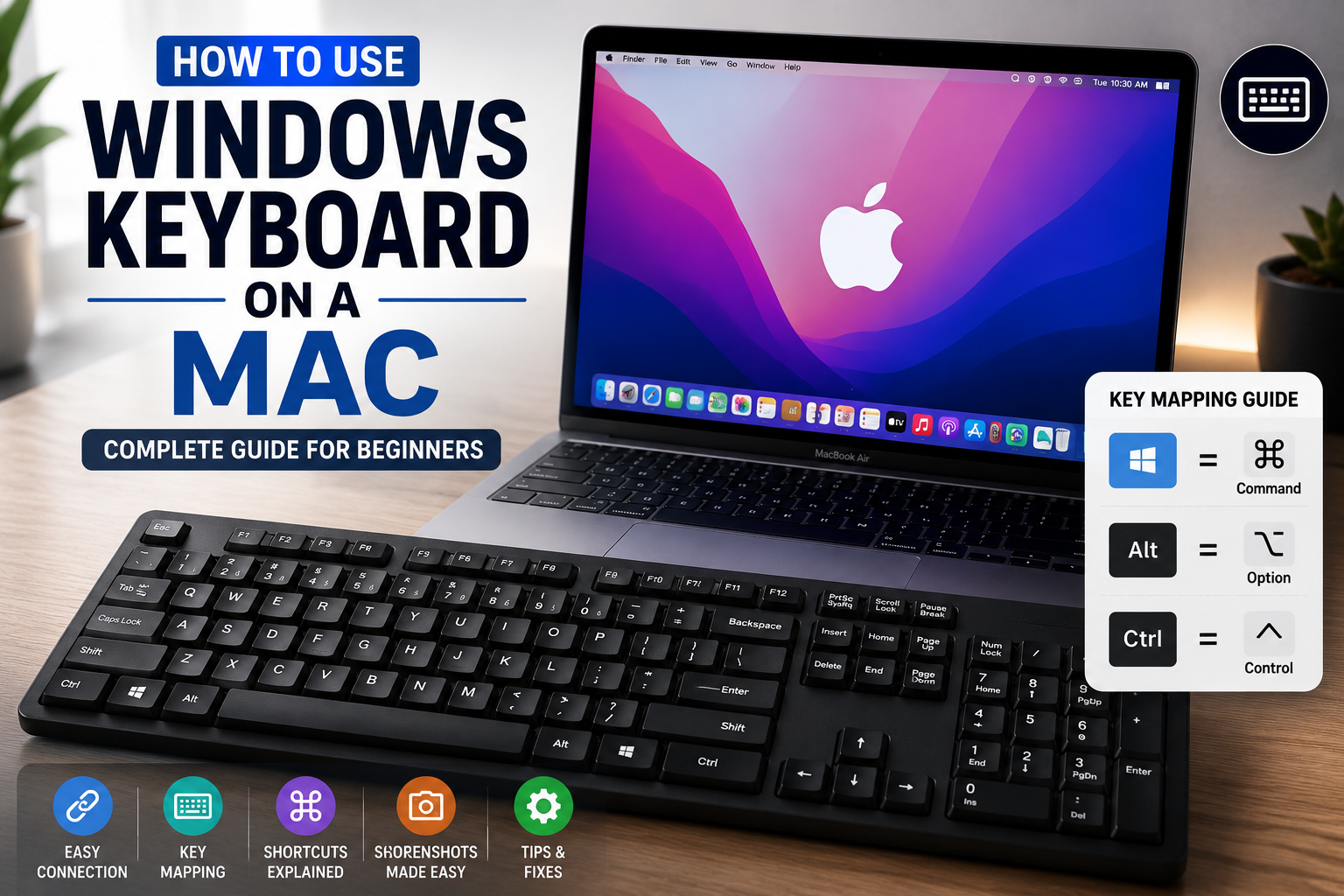
Have you recently switched from a Windows PC to a Mac but still want to use your old Windows keyboard? Or maybe you bought an external keyboard that has Windows keys instead of Mac keys?
The good news is that a Windows keyboard works perfectly with a Mac. You don’t need to buy a new Apple keyboard unless you want to. macOS automatically recognizes most Windows keyboards, and after learning what a few keys do, you can use your Mac just as easily.
In this guide, you’ll learn how to connect a Windows keyboard to your Mac, understand which keys match the Mac keyboard, use common shortcuts, customize the keys, and solve common problems.
Can You Use a Windows Keyboard on a Mac?
Yes, absolutely.
Whether your keyboard is from Logitech, Dell, HP, Lenovo, Microsoft, or another brand, you can connect it to your Mac using either USB, Bluetooth, or a wireless receiver.
Once connected, macOS will automatically detect the keyboard. Most keys will work immediately without requiring any additional software.
The only difference is that some keys have different names and positions compared to an Apple keyboard.
Windows Keyboard vs Mac Keyboard
Before you start using your Windows keyboard on a Mac, it helps to understand how the keys match.
| Windows Keyboard | Mac Keyboard | What It Does |
|---|---|---|
| Windows Key | Command (⌘) | Used for most keyboard shortcuts |
| Alt | Option (⌥) | Used for special characters and shortcuts |
| Ctrl | Control (⌃) | Used for Control shortcuts |
| Backspace | Delete | Deletes characters to the left |
| Enter | Return | Confirms actions |
| Print Screen | No direct equivalent | Use macOS screenshot shortcuts instead |
The biggest difference is the Windows key.
On a Mac, the Windows key acts as the Command (⌘) key, which is the key you’ll use most often.
How to Connect a Windows Keyboard to a Mac
Connecting a Windows keyboard is very simple.
Method 1: USB Keyboard
If you have a wired keyboard:
- Plug the USB cable into your Mac.
- Wait a few seconds.
- macOS will recognize the keyboard automatically.
- You can start typing immediately.
No drivers are usually needed.
Method 2: Bluetooth Keyboard
If your keyboard supports Bluetooth:
- Turn on the keyboard.
- Put it into pairing mode.
- Open System Settings on your Mac.
- Click Bluetooth.
- Select your keyboard from the available devices.
- Click Connect.
After pairing, your keyboard will reconnect automatically whenever it is turned on.
Method 3: Wireless Keyboard with USB Receiver
Many wireless keyboards include a small USB receiver.
Simply:
- Plug the receiver into your Mac.
- Turn on the keyboard.
- Wait a few seconds.
Your keyboard should begin working immediately.
Understanding the Most Important Keys
If you’ve always used Windows, the biggest adjustment is learning where the Command and Option keys are.
Here’s what they do.
Windows Key = Command (⌘)
Think of the Windows key as the Mac’s main shortcut key.
For example:
- Windows + C → Command + C (Copy)
- Windows + V → Command + V (Paste)
- Windows + X → Command + X (Cut)
- Windows + Z → Command + Z (Undo)
- Windows + A → Command + A (Select All)
Whenever a Mac guide says Press Command, simply press the Windows key on your keyboard.
Alt Key = Option (⌥)
The Alt key becomes the Option key on macOS.
It helps you:
- Type special symbols
- Access hidden menu options
- Use advanced keyboard shortcuts
For example, many special characters require the Option key.
Ctrl Key = Control
The Ctrl key continues to work as the Control key.
Although it is used less often than Command, some macOS shortcuts still require it.
For example:
- Control + Click works like a right-click.
- Some apps have Control-based shortcuts.
Common Mac Keyboard Shortcuts Using a Windows Keyboard
Once you know which keys match, using keyboard shortcuts becomes easy.
| Action | Windows Keyboard |
|---|---|
| Copy | Windows + C |
| Paste | Windows + V |
| Cut | Windows + X |
| Undo | Windows + Z |
| Save | Windows + S |
| Select All | Windows + A |
| Find | Windows + F |
| Windows + P | |
| Open New Tab | Windows + T |
| Close Window | Windows + W |
| Switch Apps | Command + Tab (Windows key + Tab) |
| Spotlight Search | Windows + Space |
After a few days of use, these shortcuts will feel natural.
How to Take Screenshots
Windows users often look for the Print Screen key.
macOS uses keyboard shortcuts instead.
Here are the most useful ones.
Capture the Entire Screen
Press:
Shift + Command + 3
On a Windows keyboard:
Shift + Windows Key + 3
The screenshot is automatically saved.
Capture Part of the Screen
Press:
Shift + Command + 4
Then drag your mouse to select the area.
Open Screenshot Toolbar
Press:
Shift + Command + 5
This opens macOS’s built-in screenshot and screen recording tool.
How to Use Function Keys
Most Windows keyboards have function keys from F1 to F12.
On a Mac, they perform tasks such as:
- Adjust brightness
- Control volume
- Play or pause music
- Open Mission Control
If they don’t work as expected, open:
System Settings → Keyboard
Here, you can choose whether the function keys act as standard F1–F12 keys or as media keys.
How to Swap Modifier Keys
Some people prefer the Windows key and Alt key to match Apple’s layout exactly.
macOS lets you change them.
Follow these steps:
- Open System Settings.
- Click Keyboard.
- Select Keyboard Shortcuts.
- Click Modifier Keys.
- Choose your Windows keyboard.
- Swap the Command, Option, or Control keys if needed.
- Save your changes.
This only takes a minute and can make the keyboard feel much more familiar.
How to Type Special Characters
The Option (Alt) key helps you type many symbols.
For example:
- Option + 2 → ™
- Option + 3 → £
- Option + 4 → ¢
- Option + G → ©
There are many more combinations available, making it easy to type symbols without copying and pasting them.
Common Problems and Their Solutions
Sometimes your keyboard may not behave as expected.
Here are the most common issues.
Keyboard Is Not Detected
Try these steps:
- Disconnect and reconnect the keyboard.
- Restart your Mac.
- Try another USB port.
- Replace the batteries if it’s wireless.
- Re-pair the Bluetooth connection.
Wrong Keys Are Working
Open System Settings → Keyboard → Modifier Keys and check whether the Command and Option keys are mapped correctly.
Function Keys Don’t Work
Go to System Settings → Keyboard and adjust the Function Key settings.
Bluetooth Keeps Disconnecting
Try:
- Charging the keyboard.
- Moving closer to the Mac.
- Removing the keyboard from Bluetooth settings and pairing it again.
Do You Need Special Software?
Usually, no.
macOS already supports most Windows keyboards.
However, some gaming or advanced keyboards include extra programmable keys. In that case, you may need the manufacturer’s software to customize those special buttons.
For everyday typing, browsing, office work, programming, and studying, no additional software is required.
Is It Better to Buy an Apple Keyboard?
Not necessarily.
If you already own a good Windows keyboard, there is no reason to replace it.
A Windows keyboard can be an excellent choice because:
- It saves money.
- It works with macOS.
- Most shortcuts work after learning the key mapping.
- Many people prefer the larger layout and comfortable typing experience.
If you frequently switch between Windows and Mac, using the same keyboard can also make your workflow more convenient.
Final Thoughts
Using a Windows keyboard on a Mac is much easier than most people expect. After connecting it, almost everything works right away. The only thing you really need to remember is that the Windows key acts as the Command key, and the Alt key acts as the Option key.
Once you become familiar with these key differences, you’ll be able to copy, paste, switch apps, take screenshots, and use almost every macOS shortcut without any trouble.
If you’re moving from Windows to Mac, keeping your existing keyboard is a simple way to save money while still enjoying all the features macOS has to offer. After a few days of use, the different key names will become second nature, and you’ll hardly notice the difference.