
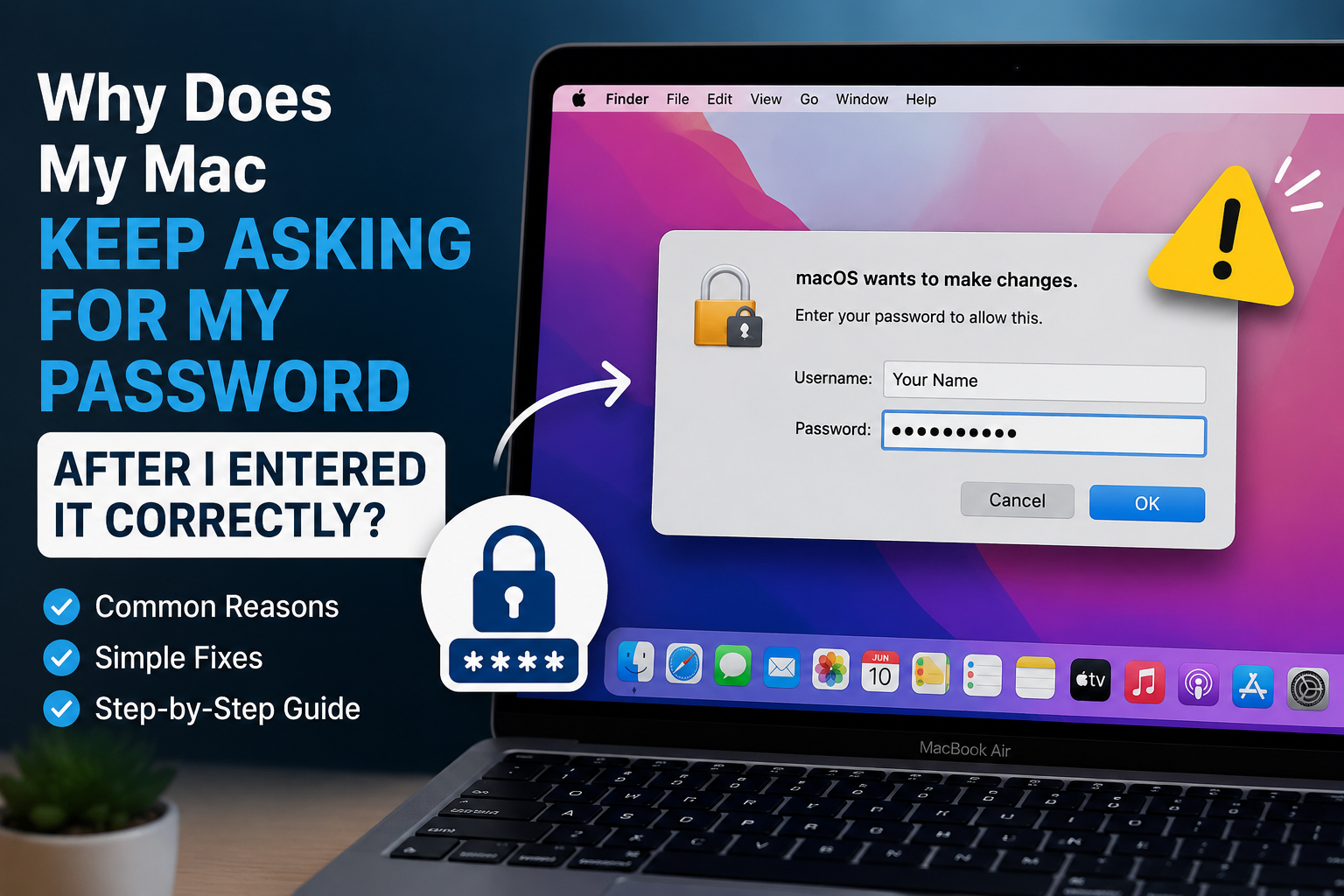
Your Mac accepts your password, but then asks for it again. This can be very frustrating, especially when you are sure that you entered the correct password.
In many cases, the problem is not that your password is wrong. Your Mac may be asking for a different password, or the password stored in your Keychain may no longer match your Mac login password.
Here are the most common reasons and what you can do.
1. Check Which Password Your Mac Is Asking For
First, look carefully at the message on the screen.
Your Mac can use different passwords for different things. Your login password is used to unlock your Mac, while your Apple Account password is used for Apple services such as iCloud and the App Store.
If the message mentions Keychain, Keychain Access, an app, email account, or another service, it may not be asking for your normal Mac login password.
This is one of the most common reasons people think their correct password is being rejected.
2. Your Keychain Password May Be Different
macOS uses Keychain to securely store passwords and other information used by apps and services.
Normally, your login password and login Keychain password are the same. However, they can become different if you changed your Mac password in the past or reset it.
For example, imagine your old Mac password was Password A.
Later, you changed it to Password B.
Your Mac login may now use Password B, while the old Keychain is still protected by Password A.
In this situation, macOS may continue asking you for a password even though your current login password is correct.
3. Try Your Previous Mac Password
If the message specifically asks for your Keychain password, try the previous password you used to log in to your Mac.
Apple recommends trying your previous user password when the login and Keychain passwords are out of sync.
If the old password works, the Keychain should unlock.
If you recently changed your Mac password, this is one of the first things worth trying.
4. Look at Which App Is Asking
Sometimes the repeated password request comes from one particular app.
For example, you might see the request when opening:
- Safari
- Microsoft Office
- A VPN
- A work application
- A network connection
If the request mentions Keychain access, macOS is asking whether that app can access information stored in your Keychain.
If you trust the app, you may see options such as Allow Once or Always Allow. Apple explains that “Always Allow” lets the app access the required Keychain information without asking for permission each time.
Do not automatically approve the request if you do not recognize the app.
5. Restart Your Mac
If the password request appeared suddenly, restart your Mac.
Choose:
Apple menu → Restart
After the Mac starts again, enter your normal login password and check whether the problem continues.
A restart can sometimes clear a temporary problem with an app or system process.
6. If You Recently Changed Your Password
Think about whether you recently changed your Mac login password.
If you did, a Keychain mismatch is a strong possibility.
Apple says that if your Keychain password does not match your user password, the Keychain may not unlock automatically.
Apple also provides an option to reset the default Keychain, but this should not be your first step. Resetting it can remove passwords stored in the old Keychain. Apple recommends manually resetting the default Keychain only when advised by Apple Support.
7. If Mail Keeps Asking for Your Password
If the password request appears only when using the Mail app, the problem may be with your email account rather than your Mac login.
For example, if you recently changed your Gmail or other email password, Mail may still be trying to use the old password.
Apple recommends checking your account under:
Apple menu → System Settings → Internet Accounts
Select your email account and check its settings.
You can also try signing in to your email account through its website. If the password does not work there, you may need to reset or update your email password.
Final Thoughts
If your Mac keeps asking for a password even though you are entering it correctly, do not immediately assume that your Mac login password is wrong.
First check what the password request is actually asking for.
If it mentions Keychain, your Keychain password may be different from your current Mac password. If it happens only inside Mail or another app, the problem may be with that particular account.
In most cases, identifying which password macOS is requesting is the key to solving the problem.